
“Groups” section
The “Groups” section shows the group tree of the drawing. In the factory order of the panel it is the sixth, below “Z levels”.
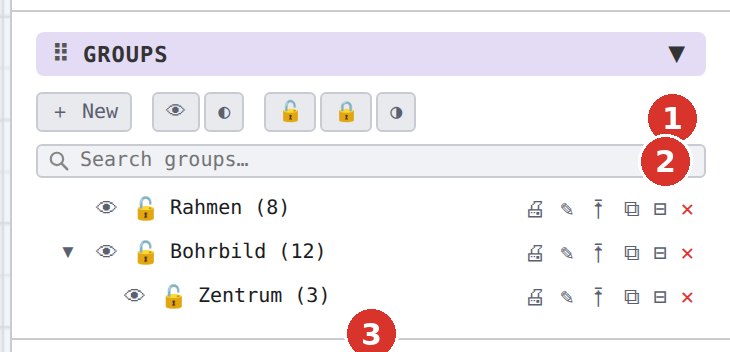
Toolbar

| Button | Effect |
|---|---|
| + New | creates an empty group on the top level; the field “Name of the new group:” proposes “Gruppe n” (“Empty group "…" created”) |
| 👁 | show or hide all groups (“All groups shown” / “… hidden”) |
| ◐ | invert visibility of every group (“Group visibility inverted”) |
| 🔓 / 🔒 | unlock / lock all groups — per group, without cascade (“All groups unlocked” / “… locked”) |
| ◑ | invert locking of every group (“Group locking inverted”) |
Without groups the collective switches report “No groups”. Every collective switch is one undo step.

Live search
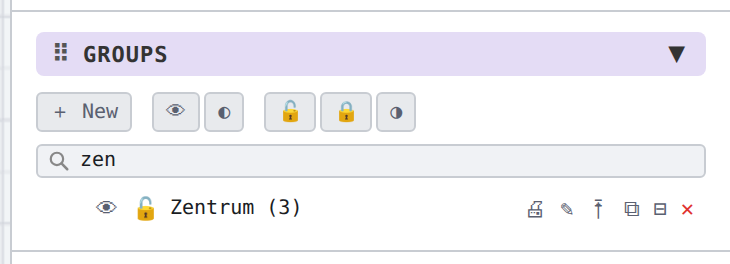
“Search groups…” filters by name while typing (several words = all must occur); Esc or the small ✕ at the right inside the field clears it (the ✕ since program version v3.0.39, visible only when text has been entered). With a search the list shows a flat list of matches without indentation; without a match “No group matches the search”.
Tree rows
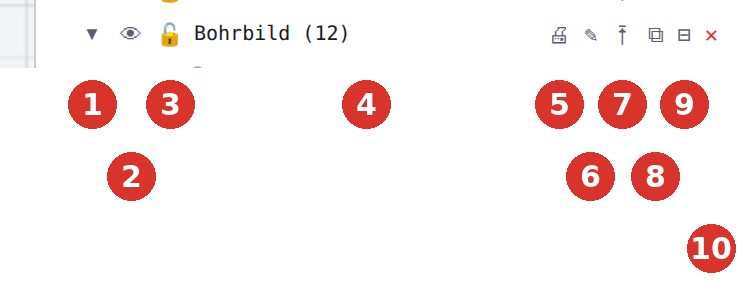
| Column | Effect |
|---|---|
| (1) ▾ / ▸ | folds the subgroups or unfolds them (only for groups with subgroups) |
| (2) 👁 | show/hide group; pale when hidden or “hidden by parent group” |
| (3) 🔓 / 🔒 | lock group (cascade onto subgroups) / unlock; locked red |
| (4) Name (n) or (n+m) | n elements, m dimensions and hatches. Click on the row selects the selectable parts including subgroups (“Group "…" selected (12 elements, 2 dimensions)”). Locked or hidden objects stay out; the status bar appends their number (“· 1 locked/hidden skipped”), and if nothing at all is selectable it reports “Group "…": all n object(s) locked or hidden — nothing selected”. Double-click on the name = rename; drag by the name = drag & drop |
| (5) 🖨 | exclude group from printing / print again (struck through and red when excluded) |
| (6) ✎ | rename in the field “Name:” (“Group renamed”) |
| (7) ⭱ | “Move into group …” — picker with “Top level” |
| (8) ⧉ | copy group: the subtree is attached to the mouse |
| (9) ⊟ | dissolve grouping, elements stay |
| (10) ✕ | delete the group and its elements (confirmation or picker) |
Rows with selected elements carry a blue bar, their parents a pale one (Selection in the tree). Hidden groups appear dimmed, locked ones in red.


Dragging in the tree
The tooltip of the row sums it up: “Drag by the name: onto the middle of the row = into the group, onto the upper/lower edge = line for re-ordering, header = top level”. The frame shows “into”, the blue line the new position; the dragged row appears dimmed. Everything else: Moving and arranging groups.


Right-click menus
Right-click on a row or on the free area: see Right-click menus of the section.


Related topics
- Groups — the relationships
- Panel sections