
DXF options
Overview
The dialog appears on every DXF export, right before the file is written. It sets the form in which composite objects arrive in the DXF. The choice made is kept for the next export.

The fields
| Field | Meaning |
|---|---|
| Hatches — “as a block (one handle, exact image)” | the hatch lines are written as a block; the target CAD shows exactly the same picture (factory setting) |
| Hatches — “as a hatch object (smaller, adjustable in the target CAD)” | a native HATCH object; the file gets smaller, the pattern may differ in the target CAD |
| Dimensions — “combine as a block” | dimension lines, arrows and text form one whole each (factory setting: ticked); without the tick they are written as separate elements |
| Blocks — “as a block (stays one part)” | block instances remain blocks (factory setting) |
| Blocks — “exploded into single parts” | every instance is broken down into its elements |
| “Cancel” | cancels the export, no file is created |
| “Export” | writes the file with the options chosen |
On a sheet
If the view is on a sheet, the dialog additionally shows the question “What to export?” at the top:
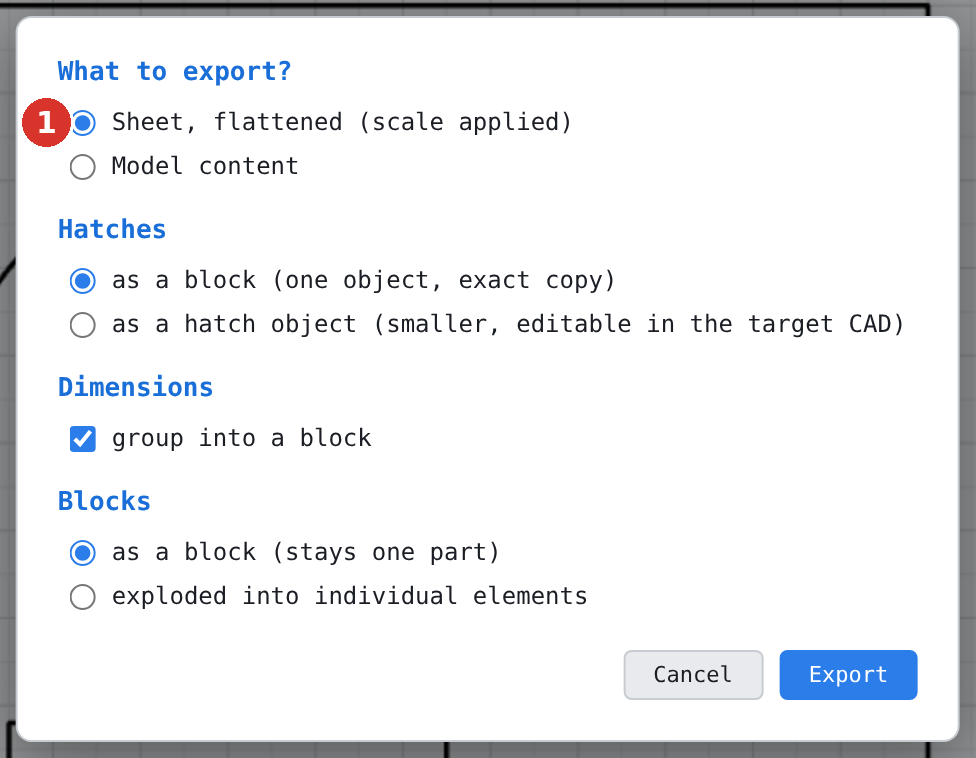
| Choice | Result |
|---|---|
| Sheet flattened (scale applied) | the whole sheet in sheet coordinates: viewport contents at the viewport scale, frame, title block, dimensions and hatches |
| Model content | the content of the model, unscaled — the status bar reports “Export in paper space: the model content is exported” |
Context
Layer names and line types follow the active DXF profile, not this dialog. The prompt “selection only or everything” comes before it and is described under Export prompts.