
Gear window and Settings dialog
The gear at the right of the bar opens the gear window with the settings functions and the layout; its entry Setup (and the command Save/load settings) opens the Settings dialog. Both are described here. Context: Setup and settings.
Gear window
The window hangs below the gear; a second click on the gear or × closes it. Its content is rebuilt in the current language every time it opens.

Functions
Five rows that apply in both layouts. A click first closes the window and then calls the function:
| Row | Effect |
|---|---|
| ⚙ Dimension settings | opens the Dimension settings dialog |
| ⚙ Hatch settings | opens the Hatch settings dialog |
| 💾 Setup | opens the Settings dialog (below) |
| ☀️ Night mode / 🌙 Day mode | switches to the named mode, see Day/night mode |
| ℹ Info / imprint | opens Info / About; the program version is shown on the right |
Layout
Ribbon or Classic. Ribbon: wide buttons with labels and group names. Classic: the narrow icon bar. The switch applies at once, the window moves along and afterwards shows only the rows that work in the new layout. Further ways: Switch ribbon / classic toolbar.
Icons
S / M / L / XL — size of the icons on the ribbon buttons (20 / 24 / 30 / 36 px for large, 13 / 15 / 18 / 22 px for small buttons), independent of the text size. Factory M.
Text
S / M / L / XL — size of the button labels and group names (9 / 10 / 11 / 12.5 px), independent of the icon size. Factory M.
Font
List Default (program font, factory), Segoe UI, Arial, Verdana, Tahoma, Calibri, Consolas. Affects only button labels and group names of the ribbon; the rest of the program keeps its font.
Spacing
Tight / Normal / Wide — minimum button width (40 / 52 / 64 px), padding, gap between the buttons and margin of the groups. The button width grows with long labels. Factory Normal.
Remember variant
ON: a split button shows the tool last chosen from its family as its icon — as the classic toolbar always does. OFF (factory): it always shows the first tool of the family. If you always need a specific variant, add it to the favourites.
In the classic toolbar
In classic mode the window contains the five functions and the row Layout; below it reads The remaining settings apply to the ribbon only. The rows Icons to Remember variant are missing because they would have no effect there.

Settings dialog
The dialog appears centred with the drawing dimmed. Its fields are grouped in seven boxes. Apply saves all values permanently and leaves the window open; the fields are rebuilt from the saved state, so a limited or rounded value is visible at once (Settings applied). Close or a click beside the dialog closes without applying. The list Sprache / Language and the slider Icon size (constraints) take effect immediately instead.

General
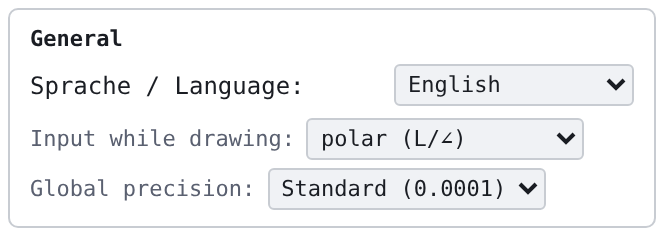
Sprache / Language
Deutsch or English. Takes effect immediately on all labels, tooltips and messages and is saved at once (status bar Sprache: Deutsch or Language: English). How-to: Change the language.
Input while drawing
polar (L/∠) (factory) or cartesian (ΔX/ΔY) — the form of the floating input field for subsequent points. The same toggle: Space while drawing or click on 📐 L/∠ in the status bar (Coordinate input).
Global precision
Coarse (0.01) · Standard (0.0001, factory) · Fine (0.000001) · Very fine (1e-8). Defines from which deviation the program treats values as equal (for instance when comparing coordinates).
Drawing & snap
Snap to automatic for geometry tools
Checkbox (factory on): calling a tool that creates new geometry (line, rectangle, circle, arc, polyline, point, slot …) switches the snap mode to automatic — even if another snap was chosen before (message Snap mode → automatic (geometry tool)). Annotation and hatching are not affected. Without the checkbox the chosen snap stays.
Create dimensions while drawing
Checkbox (factory on): lines, circles and arcs receive a dimension automatically while drawing (live dimensioning), see Dimensioning.
Show a tooltip following the cursor while drawing
Checkbox (factory on): while drawing, a small display with length and angle accompanies the pointer.
Show the hint box for the coordinate toggle
Checkbox (factory on): the first time you draw, a box explains the switch L/∠ ↔ ΔX/ΔY. Without the checkbox it does not appear; toggling with Space hides it as well.
Tangent tolerance (trim/break)
Number 0–1 (factory 0.05): additional tolerance for tangential contact points when trimming and breaking. Needed because fillet tangents do not lie exactly on the element.
Gizmo rotation: snap angle (magnetic), sector
Snap angle off / 5° / 10° / 15° (factory) / 30° / 45° / 90°: when rotating at the angle ring of the gizmo, the angle snaps magnetically near a multiple; in between it stays free. Sector ± (0.1–45°, factory 3°) is half the width of the magnetic zone — that far before the multiple the angle snaps in, that far after it releases. With at most half the snap angle it snaps everywhere (fixed snapping).
Distance to cursor
Slider 10–100 px (factory 30): horizontal distance of the floating input field from the crosshair.
Appearance
Glow effect (selection): Width, Hover intensity, Selected intensity
The glow around hovered and selected elements: Width 2–30 (factory 7), Hover intensity 0.1–1.0 (factory 0.65) for the element under the pointer, Selected intensity 0.1–1.0 (factory 0.5) for selected elements.
Point size
0.2–50 mm (factory 2): marker size of drawn points in drawing millimetres — it scales with the zoom and is exactly that size on paper at scale 1:1. At very small zoom the marker stays minimally visible.
Icon size (constraints)
Slider 3–20 (factory 7): size of the constraint symbols in the drawing; takes effect while dragging.
Floating menu on selection
Checkbox (factory on): after a selection the small floating menu with the most frequent commands appears next to the selection.
Dimension layer

Layer name
Text, factory Mass (empty becomes Mass again). If the drawing has a layer with this name, new dimensions, feature control frames, datum features and balloons get this layer; otherwise the active layer. Existing dimensions stay unchanged. Context: Dimensioning — Z level, layer, visibility.
Visible
The same switch as the eye of the system layer Dimensions: hides and shows all dimensions, feature control frames, datum features and balloons. The state lives in the drawing, not in the settings.
View & mouse
Margin from origin
20–5000 mm (factory 250): at program start and with New drawing the origin lies in the centre; this value is the visible distance from the origin to the left and right screen edge. Applies from the next start or the next new drawing.
Standard part search: at most matches
10–5000 (factory 50): that many result tiles the standard part search shows at once; further matches are only named as a number. Small values keep the search brisk even with very large libraries (program version v3.0.39).
Scale step Alt+wheel
0.01–10 (factory 0.1): step of Alt + mouse wheel when scaling an element list hanging on the mouse (inserting, placing standard parts). Alt + Shift + wheel always steps by 1.
Line types
The button ▬ ▬ ▬ Line types… opens the Line types dialog with the model space reference scale and the pattern values of the three special line types — each with its own line type factor and a preview at original size. Apply adopts and saves (the window stays open); the values apply to newly created objects, existing ones keep their snapshot. Apply to selection additionally transfers the current pattern values to the selected sealing-layer objects; Close discards. Message: Line type settings applied — the pattern values apply to new objects.

| Field | Meaning |
|---|---|
| Model space reference scale 1 : | converts paper mm of the patterns into model mm (1:50 means: 1 paper mm = 50 model mm); per drawing, in a layout paper mm apply directly (factory 1) |
| Sealing layer: edge thickness, dash pitch, window pitch, minimum band width (mm) | structure of the sealing band; the band width follows the object's line width, at least the minimum band width |
| Ventilation grid: centre-to-centre distance, minimum dot diameter (mm) | dot grid; the dot diameter follows the line width, at least the minimum |
| Structural bonding: period, rise, top height, fall, bottom depth, return (mm) | tooth dimensions in paper mm; the tooth sits centred in every period |
| Line type factor sealing layer / ventilation grid / bonding | scales the pattern pitch of all objects of the type immediately (like LTSCALE, but per type); the object factor in the Properties panel multiplies on top (factory 1) |
| Preview line width (mm) | for the preview below only (factory 0.7) |
In depth: Line types — the eight types, screen versus print, snapshot principle, factors.
Manage settings

Save locally, Load locally
💾 Save locally writes all settings to the browser storage of the computer (cad2d_settings) and closes the dialog — this happens by itself after every change, but here explicitly. 📂 Load locally applies the saved state again, leaves the dialog open and rebuilds the fields (Settings loaded; without a saved state No saved settings).
Export (JSON), Import (JSON)
📤 Export (JSON) downloads the file cad2d_settings_YYYY-MM-DD.json (Settings exported as a file) and closes the dialog. It contains all settings including your own dimension styles, print profiles, layers, DXF profiles and interface values — but neither registration, launch counter, disclaimer confirmation nor panel width (what stays on the computer); the clipboard is deliberately left out. 📥 Import (JSON) reads such a file on the other computer, applies it, saves and rebuilds the fields (Settings imported from "…"; for an unreadable file Import error: …). How-to: Transfer settings.
Panel order
↕ Panel order restores the factory order of the sections in the right panel (layers, properties, constraints, guides, Z levels, groups, blocks, standard parts, elements) and brings torn-off sections back; all other settings remain (Panel order reset to factory default). The dialog stays open.
Factory defaults
🔄 Factory defaults (red) asks Reset all settings to factory defaults? and then resets all settings of the program to the delivery state: object snap, grid, dimensioning including font and arrows, hatch defaults, layer list, print defaults, glow effect, line types, window positions, favourites, layout (ribbon, sizes M/M/Default/Normal, remember variant off) and day mode; the keys cad2d_settings, cad2d_theme and cad2d_panelW are deleted. Your own dimension styles and drawings are kept. The step cannot be undone — Export (JSON) first if you want to return. Message: Settings reset to factory defaults.
After Factory defaults the field Layer name reads dim, whereas a fresh program start shows Mass (as of v3.0.23). Check the name if your dimensions are meant to land on a dedicated layer.
Apply, Close
Apply adopts all fields, saves permanently and leaves the window open. Close discards changes not yet applied.