
Select
Purpose
The basic tool: select elements, dimensions and hatches in order to change, move or delete them afterwards. Without a selection most modification commands have no effect or go into post-selection.
Access
- Key: V; Esc cancels the running tool, a second Esc or V returns to selection.
- Ribbon: group Navigation Select (1).
- Classic toolbar: button Select (1) at the left.
- Command search : Select.


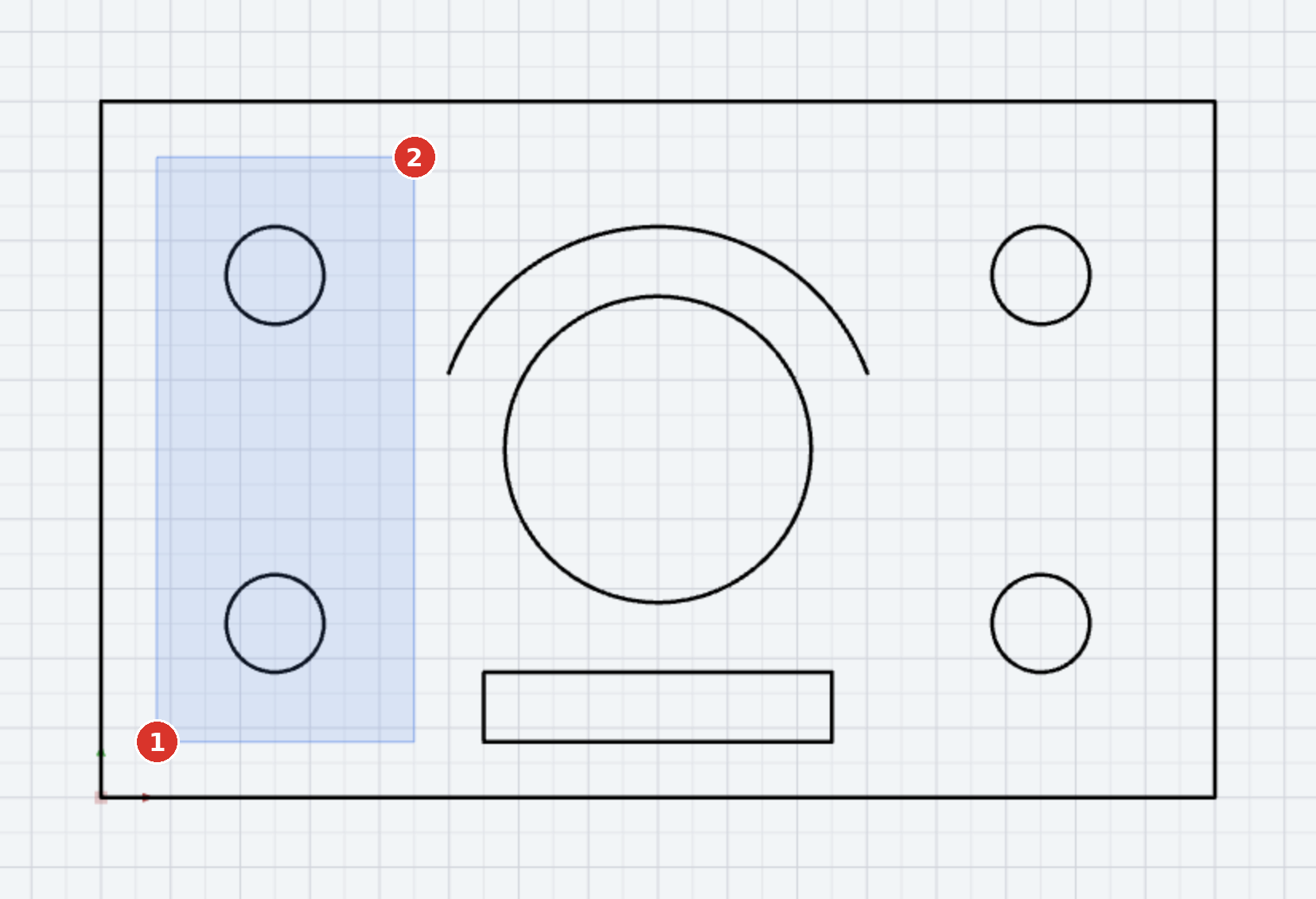
 left half
 right half
Procedure
| Action | Effect |
|---|---|
| click on element | selects it (replaces the previous selection) |
| Shift + click | adds or removes |
| click into empty space | clears the selection |
| drag from left to right | window selection — only completely enclosed elements |
| drag from right to left | crossing selection — everything the rectangle touches |
| click on grip, second click | move an endpoint or midpoint — only with one selected element (Grips) |
| double-click | properties — for a dimension Edit dimension, for a text Edit text, for an image Image properties |
| right-click | context menu with snap mode, editing and display (Right-click menu) |
The tolerance for the click is about 8 pixels; the element under the pointer lights up beforehand. Dimensions are grabbed via the dimension line or the dimension text and can then be moved with the mouse button held down (Moving dimensions).
Options
- Selection filter FILTER in the status bar: allow only certain object types, colours, line types and line widths — for objects, dimensions and hatches (Selection filter).
- Locking: elements on locked layers or in locked groups cannot be selected; hidden ones neither. The same holds for dimensions and hatches — for the single click, for the rubber band and for Select all.
- Gizmo at the selection on/off: Ctrl + Shift + G (Gizmo).
Related commands
- Select all
- Delete
- Isolate, Hide, Show all objects in the right-click menu