
Selection filter
Purpose
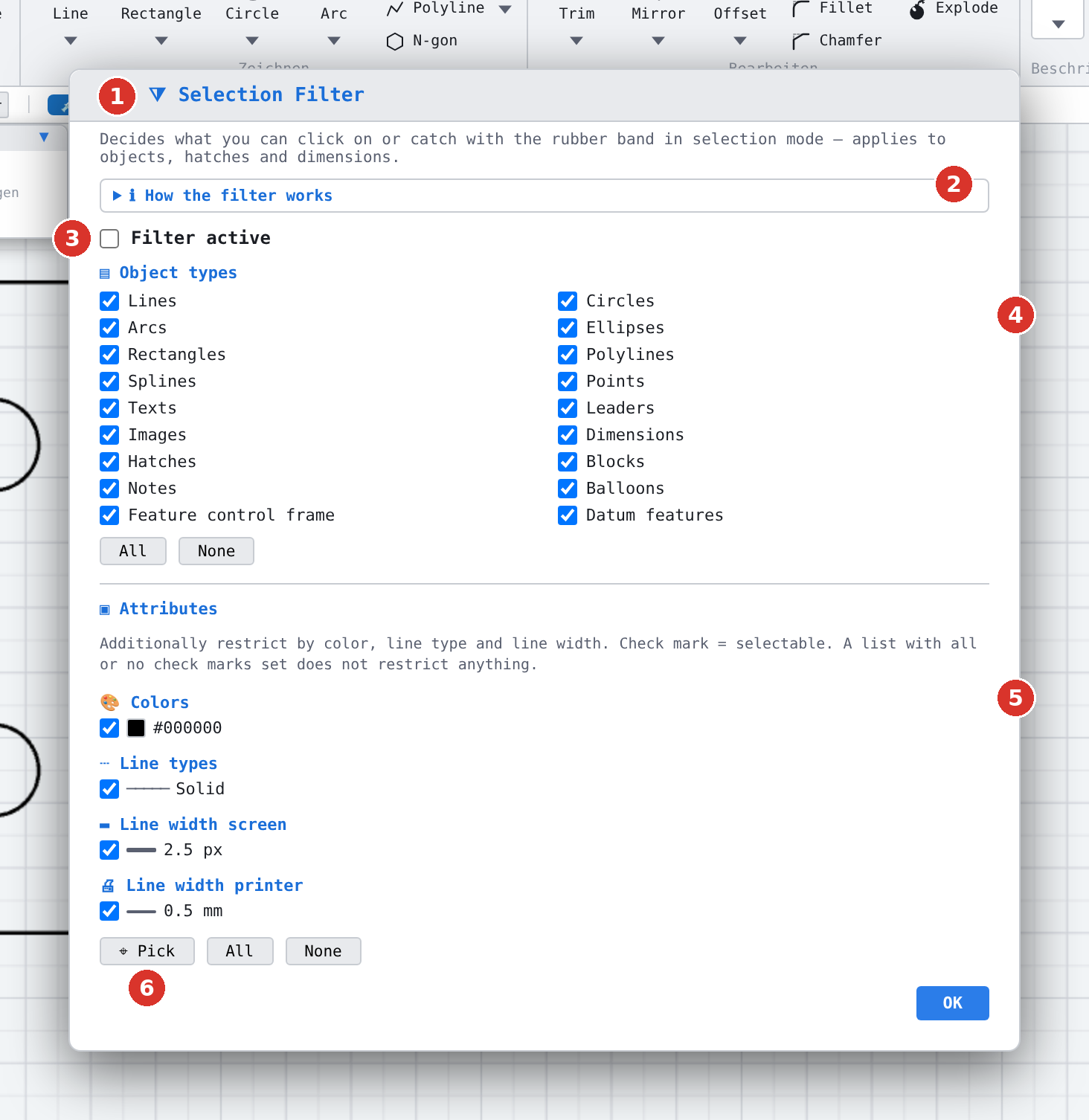
The selection filter decides what can be clicked or caught with the rubber band in selection mode. Everything else is skipped — in a crowded drawing you then only hit what you mean to hit. The filter applies equally to objects, hatches and dimensions.
A check mark means: may be selected. No check mark: is skipped.
Access
- Status bar: button FILTER (Status bar).
The dialog is not modal: you can leave it open and keep clicking in the drawing — which is exactly what Pick needs. Drag it by its title bar if it covers the part of the drawing you need. OK closes it.
Filter active
The check box switches the filter on and off. You rarely need it by hand: it sets itself as soon as something is restricted and clears as soon as nothing restricts any more.
What counts as a restriction:
- among the object types, as soon as at least one type is unchecked;
- in an attribute list, only if it is partly checked. A list with all or with no check marks restricts nothing — so you may simply leave a list alone.
The dot on the FILTER button in the status bar shows that the filter is in effect. If it is red, nothing at all can be selected. To switch off, clear Filter active or click All everywhere.
Object types
Eighteen types in two columns: lines, circles, arcs, ellipses, rectangles, polylines, splines, points, texts, leaders, images, dimensions, hatches, blocks, notes, balloons, feature control frames and datum features.
All and None set or clear every check mark of this list. If not a single type is checked, a red warning line appears in the dialog: Attention: no object type is ticked — so nothing can be selected.
Attributes
In addition you can restrict by colour, line type, line width screen and line width printer. The four lists only show values that actually occur in your drawing — including those of hatches and dimensions; dimensions contribute colour and screen width. Without that, a hatch colour could neither be unchecked nor picked.
All and None act on all four lists at once.
Pick
Instead of hunting for check marks, take the values from an element in the drawing:
- Click ⌖ Pick. The status bar reports Pick: click the element whose color, line type and line width should be ticked in the filter (ESC = cancel).
- Click an element — a hatch or a dimension works too.
The first click after the dialog was opened replaces the check marks, so only the picked values remain (Filter set to the picked element (object): color …). Every further click adds to them (Picked and added (dimension): …). A few clicks are enough to collect exactly the values you want to keep selectable.
Esc cancels (Picking cancelled), and so does a click into empty space (No element hit — picking cancelled). All wordings are listed under Layer and structure messages.
Info text How the filter works
The collapsed section at the top of the dialog explains the filter in eight short steps — meant for occasional use, so that you need not look it up here. One click opens it, another closes it.

How long the filter lasts
The selection filter is a working state, not a setting:
- It is stored neither in the drawing nor in the browser and does not travel with Transfer settings either.
- Every program start begins unrestricted: not active, all object types on, no attribute check marks.
- Opening a drawing and starting a new drawing reset it completely as well.
That way a forgotten filter from the last session can never be the reason why suddenly nothing can be clicked.
Keys
| Key | Effect |
|---|---|
| Esc | Cancel a running pick |
| Drag the title bar | Move the dialog |
Related pages
- Select — the other gates of selection (layer, groups, locking)
- Status bar — the FILTER button
- Select elements — step by step