
Import and export
What belongs to data exchange
LiberoDraft stores its own drawings as a .cad2d file (Save). For exchanging data with other programs and for templates from the workshop there are four further routes:
| Route | What for |
|---|---|
| Import DXF / Export DXF | exchange with other CAD programs — geometry, layers, colours, dimensions, hatches and blocks |
| Import SVG / Export SVG | vector graphics from illustration and layout programs, output for web and documentation |
| Insert image | photo, scan or screenshot as a template to trace |
| Import drawing | take a second LiberoDraft drawing into the open one |
Export is described on two pages: the commands under Export DXF and Export SVG, the prompts and option windows under Export prompts and DXF options.
Access
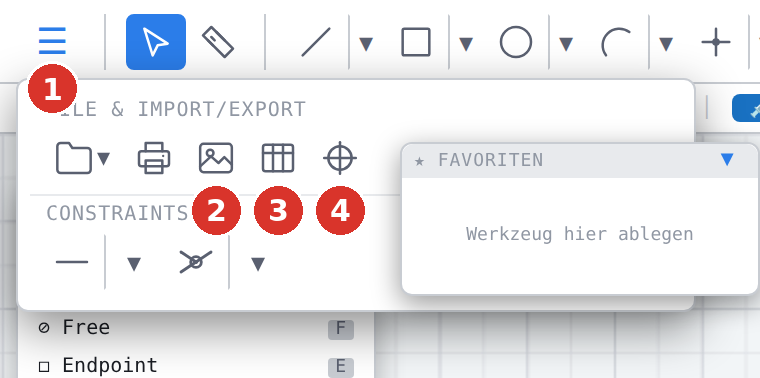
All import and export commands live in the File menu File — in the classic toolbar and in the ribbon the same button opens the same menu.

Insert image Image, Coordinate table Coordinates and Axis cross Axis cross sit in the ribbon group “File” as buttons of their own.

In the classic toolbar the whole group “File & import/export” sits in the overflow menu “☰” on the far left at a window width of 1400 pixels; on wider screens it is open in the toolbar.
What happens to the layers on import
A DXF brings its own layers. LiberoDraft creates a layer for every DXF layer that does not exist yet and puts the elements there. Which DXF name leads to which layer is governed by the active DXF profile: it holds layer mappings (with the wildcards * and ?), the line type translation and the “Normalise” switch, which pulls every object onto the layer default instead of keeping its own colour.
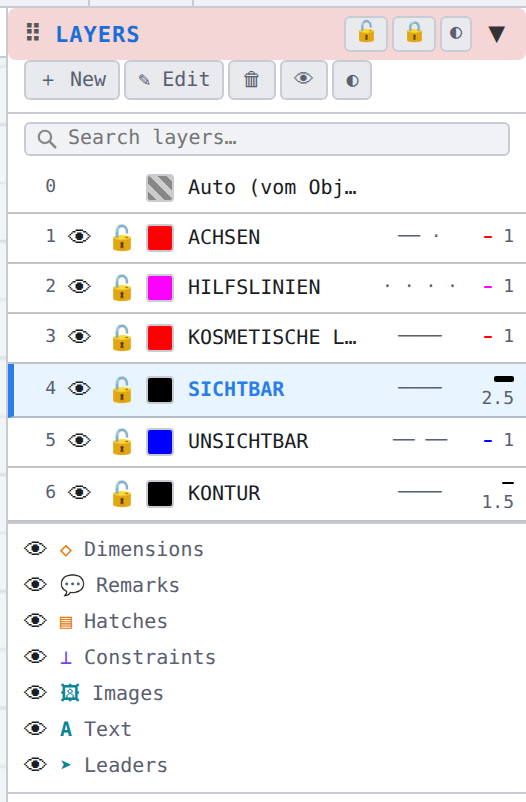
Without a profile the rule is: an explicit object colour is kept, otherwise the element inherits the layer colour; the line width always comes from the layer. The SVG import knows no layers — every element ends up on the active layer.
The check after every import
After a DXF or SVG import the check runs automatically. If it finds anything, the status bar reports the number and the dialog Check & clean up drawing opens by itself; if everything is in order, only the message appears. After a DXF import LiberoDraft additionally shows the import overview with a tally of the elements read in and recommended clean-ups.
Foreign polylines cannot carry element and angle dimensions. The import overview therefore offers to explode them into lines right away — which can be undone with Ctrl + Z.
Limits
| Point | State v3.0.24 |
|---|---|
| SVG export from the model | geometry and texts only — no dimensions, hatches, blocks and images (Printing) |
| Images | are exported neither to DXF nor to SVG |
| Sheets | the paper space is written flattened on DXF and SVG export, no paper-space structure is created |
| File selection | import and export run through the browser file dialog; the output is downloaded |