
Constraints
Experimental status: constraints are an experimental function group. On the first call of a constraint tool the program shows the notice “⚠ Constraints are still experimental” and marks it in the floating tooltip.
Purpose
A constraint fixes a geometric relationship — a line stays horizontal, two lines stay parallel, two circles concentric. When set, the program aligns the second element to the first at once; afterwards a solver maintains the relationship on every change of the geometry. Every constraint appears as a small symbol at all elements involved.
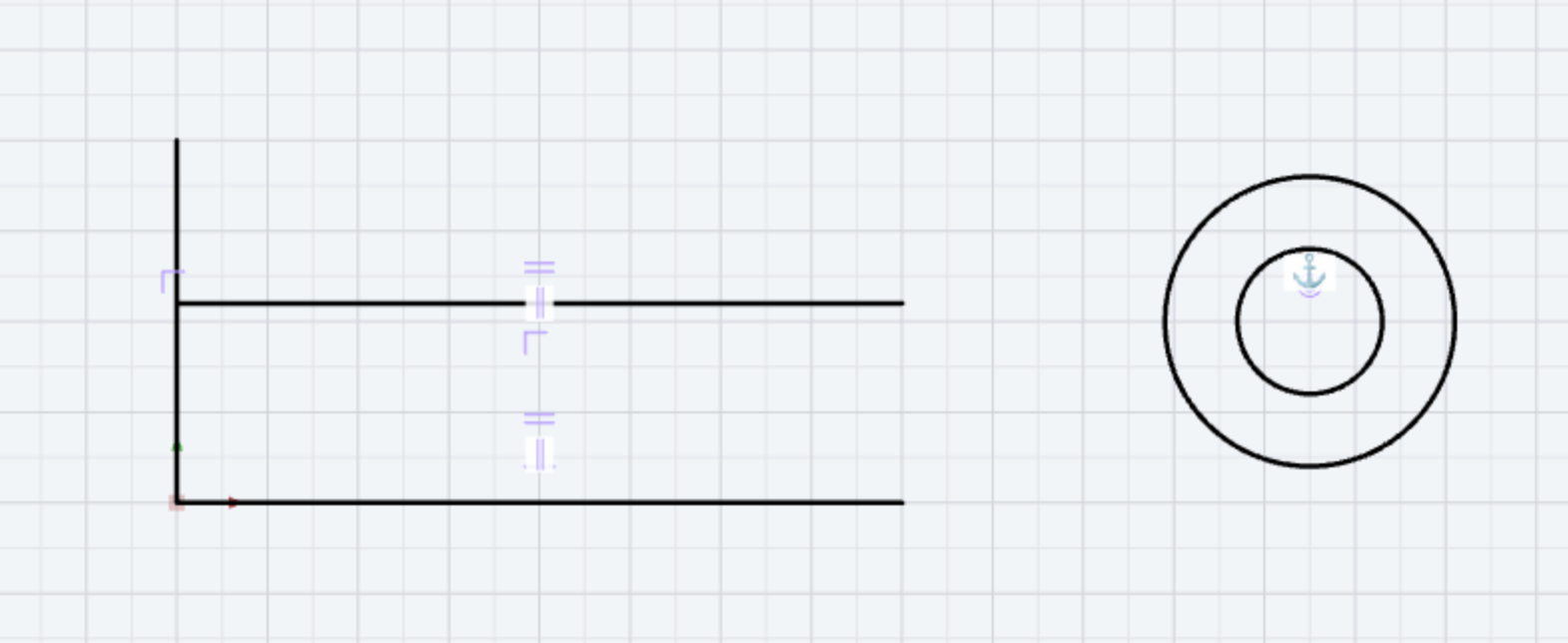
Step by step: Set and release constraints. Field by field: “Constraints” section.
Access
- Ribbon: group “Constraints” — the split button Constraints opens the list of all eleven constraints with its triangle (1–11); the button itself starts “Horizontal”.
- Classic toolbar: group “Constraints” as a drop-down button. If the window is not wide enough, the group sits in the menu “☰” (“Menu / more tools”) at the right of the toolbar (1) and unfolds there (2).
- Tool window, section “Constraints”: “Fix horizontal”, “Fix vertical”, “Fix position” (1–3).
- Command search : “constraint” — entries “Constraint: Horizontal” etc.


Procedure
With the tool the snap mode switches to Free. The floating tooltip names what to click at each step; the first clicked element is always the reference and stays unchanged, the second is adapted. After the last click the status bar reports “Constraint: … applied”, the tool stays active for the next constraint. If the selection does not fit, the reason appears with “⚠” in the status bar and the clicks are discarded (Messages).


The eleven constraints
Horizontal
One click on a line. The line is rotated horizontal — about its midpoint, so both endpoints share the change; the direction is kept (no flipping). Not combinable with “Vertical” (“The line is already vertical — it cannot also be horizontal”).
Vertical
One click on a line: it becomes vertical, rotated about the midpoint as well.
Perpendicular
1st click reference line, 2nd click second line → it is rotated perpendicular to the reference, on the side where it already lies (no flipping). Not combinable with “Collinear” on the same pair.
Parallel
1st click reference line, 2nd click second line → it is aligned parallel. Then a browser window asks “Abstand zwischen parallelen Linien:” (German in every language) with the current distance as proposal; a new value shifts the second line perpendicularly to that distance, “Cancel” leaves it.
Equal
1st click reference, 2nd click target → two lines get the same length (the target is adjusted from its start point along its direction), two circles or two arcs the same radius.
Coincident
1st click on an element near the endpoint that should move; 2nd click on the target: on an endpoint → point-to-point (“Coincident: points joined”), anywhere on a line or arc → the point lies on the element and slides along it (“Coincident: the point lies on the element”).
Concentric
1st click reference circle or arc, 2nd click second circle or arc → it takes the centre of the reference. Needs two circles or arcs (“Concentric needs two circles or arcs”).
Tangent
1st click circle or arc (its centre stays), 2nd click line or circle → the line is shifted perpendicular to itself to the distance “radius”; a second circle is shifted so the circles touch — inside or outside, whichever is closer to the current position. Allowed: circle/arc + line or two circles (“Tangent needs a circle/arc + line, or two circles”).
Collinear
1st click reference line, 2nd click second line → its endpoints are projected onto the reference's straight line; both then lie on the same straight line.
Fixed
One click on an element freezes its complete geometry: it can neither be moved nor resized — the solver restores the stored state on every change. In the tool window also as “Fix position”.
Point on intersection
Three clicks: 1st a point element (is positioned), 2nd element A, 3rd element B → the point moves to the intersection of A and B; if the elements do not intersect directly, to the extended intersection. A and B must be a line, circle, arc or polyline; parallel lines have no intersection (“The elements do not intersect even when extended (parallel lines?)”).
Symbols, visibility and panel
Every constraint is drawn as a symbol at every element involved; several symbols at one element stack. The symbols are construction aids: they appear neither in the viewports of a sheet nor in print. The system layer “Constraints” hides them — the constraints stay in force.


The “Constraints” section in the panel on the right lists the constraints of the one selected element as tags; ✕ on a tag deletes the constraint.
Deleting a constraint
- Right-click on a symbol in the drawing opens a mini menu with the name of the constraint and “🗑 Delete constraint” (status bar “Constraint deleted”).
- “Constraints” section: ✕ on the tag of the selected element.
- Deleting an element involved removes the constraint too; “Check & clean drawing” in the file menu finds constraints without an element.

The notice “experimental”
With the first constraint tool a pill “⚠ Constraints are still experimental” appears at the bottom centre with the button “don't show again ✕”; the click is remembered in the browser (“Notice hidden — constraints remain experimental.”). The mark “⚠ experimental function group” in the floating tooltip remains.

Rules
- Every constraint is one undo step (Ctrl + Z), including the distance after “Parallel”.
- The same constraint can be set only once per element or pair (“This constraint already exists on the element”, “The same constraint already exists on this pair”); elements A and B must be different.
- Contradicting combinations are rejected (horizontal/vertical, perpendicular/collinear, two lines already parallel or perpendicular).
- Constraints are saved with the drawing, copied with blocks and via the clipboard, and taken along when copying layer contents or a group.
- The solver works iteratively (up to 15 passes per change); with many chained constraints a geometry may lag.
Related commands
- Snap mode — construction without a permanent constraint
- Weld — join endpoints permanently
- “Constraints” section