
Select and change elements
Goal
Select the four holes of the example plate — without the plate itself — and move them together 5 mm upwards.
Steps
- V (select). Drag a rubber band from top left to bottom right over the two left holes: only completely enclosed elements are selected, not the plate edge.
- Add the two right holes with Shift + click.
- If something wrong is included, Shift + click on it removes it again.
- In the gizmo window at Δ type 5 into the field Y, OK: all four holes move 5 mm upwards; the dimensions follow.
- Alternatively Del to delete the selection; Ctrl + Z brings it back.
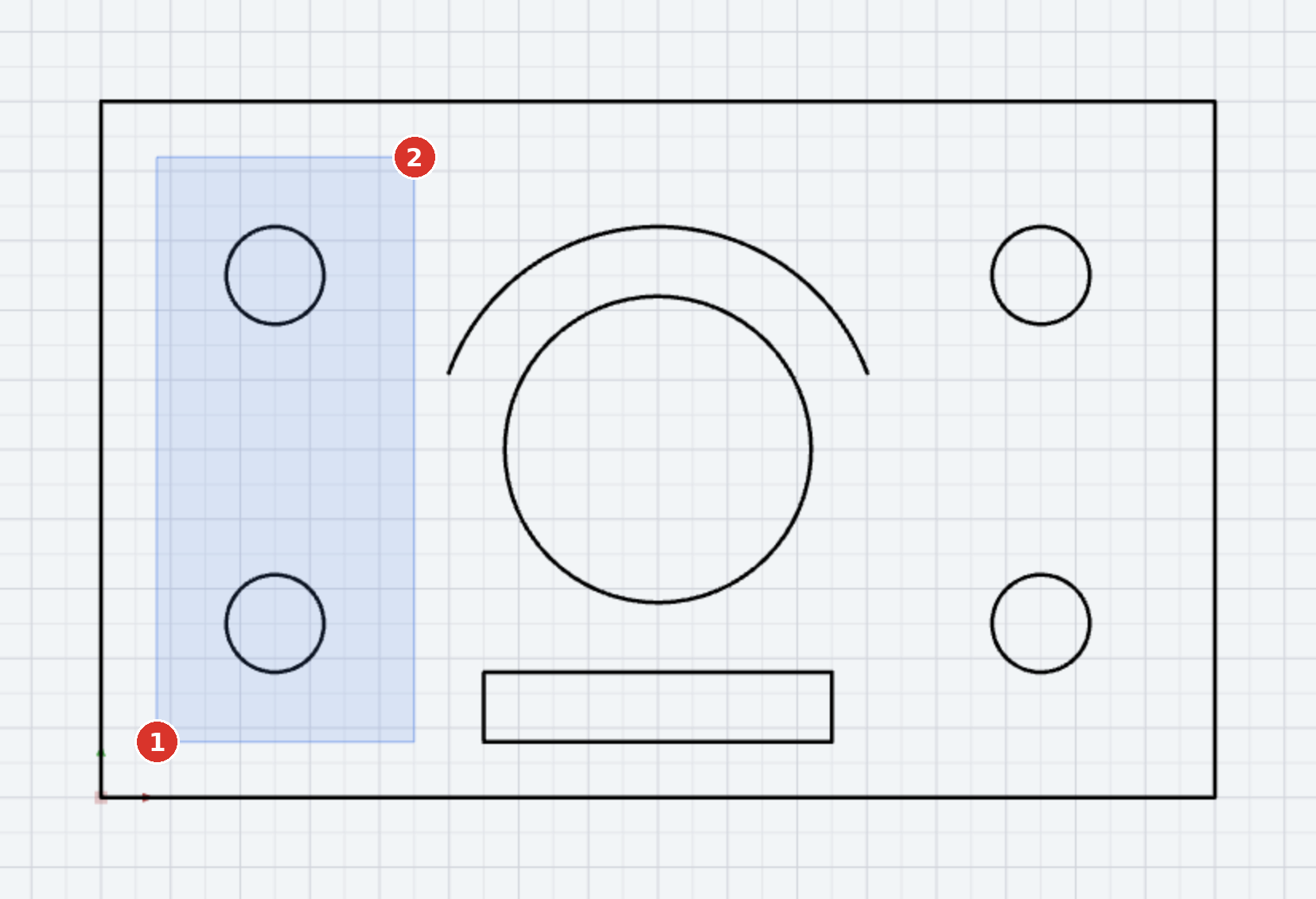

Result
The selection remains after moving; a click into empty space clears it.
Tip
If only circles are to be selectable, FILTER in the status bar switches the other object types off (Selection filter); then the rubber band can be dragged roughly over the whole plate. If only one colour should be selectable, pick it from an element in the dialog (Pick).