
Circle constructions
Purpose
The ordinary circle is created from centre and radius. Often, however, neither is known and something else is given instead: three points the circle has to pass through, or elements it has to touch. These three tools cover those cases. The result is always an ordinary circle on the active layer.
Access
- Ribbon: group Draw, triangle on the Circle button — entries Circle 3P (2), Circle tang. 3 (3) and Circle tang. 2 (4).
- Classic toolbar: drop-down triangle of the circle family (3).
- Command search : Circle 3 points or Circle tangent.

Circle through three points
Circle 3 points Places the unique circle through three points:
- Click the first point (1).
- Click the second point (2) — 2nd point….
- Click the third point (3) — 3rd point / radius…; instead of clicking you may also type the radius.

If the three points lie on a straight line there is no circle: The 3 points are collinear. With object snap the three points can be placed exactly on existing corners, midpoints or centres — the usual way to reconstruct a bolt circle or a fillet from measured points.
Circle tangent to three elements
Circle tangent 3 Draws the circle that touches three existing elements — with three lines, therefore, the incircle of the triangle:
- Click the first element (1) — Click an element.
- Click the second element (2) — Click the 2nd element….
- Click the third element (3).
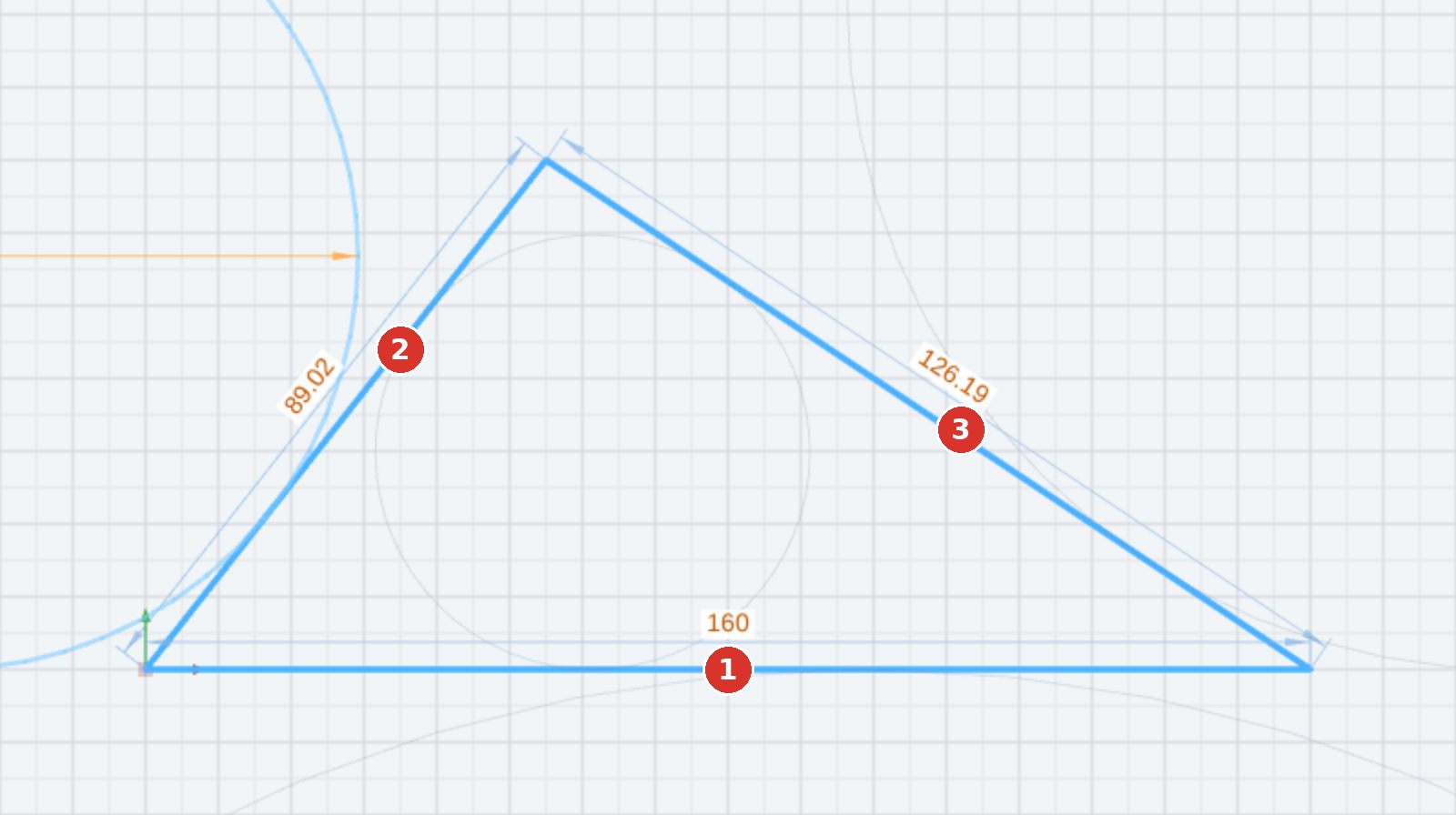
Here too the click side counts: with three lines there are three excircles besides the incircle; the program takes the solution matching your click positions. So click where the circle is meant to touch the element.
Circle tangent to two elements
Circle tangent 2 Draws a circle with a given diameter that touches two elements:
- Click the first element (1) — Click an element.
- Click the second element (2) — Click the 2nd element….
- Type or click the diameter — Enter the diameter or click…. The preview follows the mouse, the field accepts the value.

The click positions and the mouse position decide in which of the possible corners the circle lies.
Options
- All three tools draw on the active layer; pick up attribute (J) applies beforehand.
- If Create dimension while drawing is on, the circle receives its diameter dimension (live dimensioning).
- Esc cancels; every circle is a separate step for Undo.
Related commands
- Circle — centre and radius
- Tangents — lines touching circles
- Arcs tangent · Ellipses