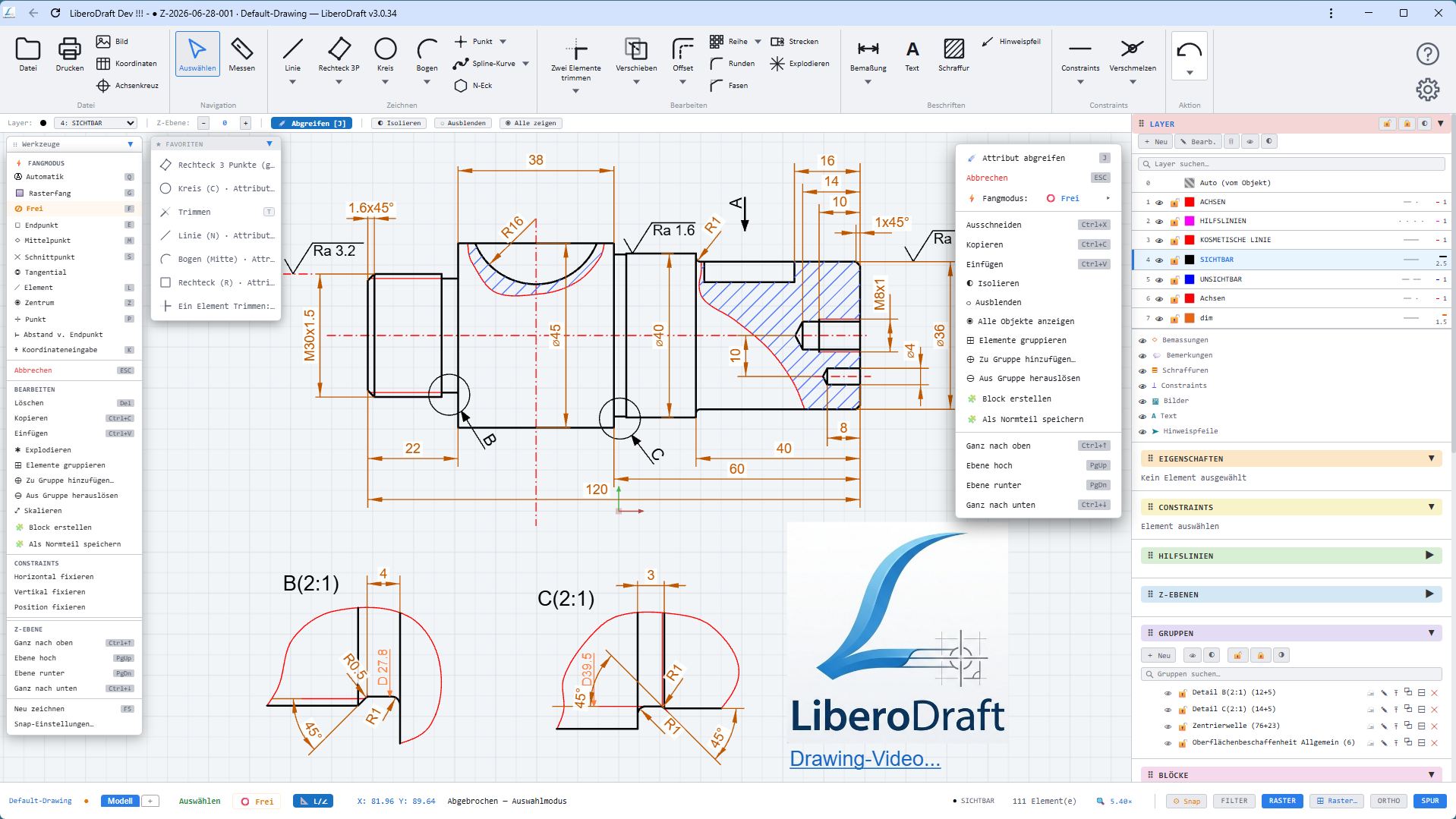
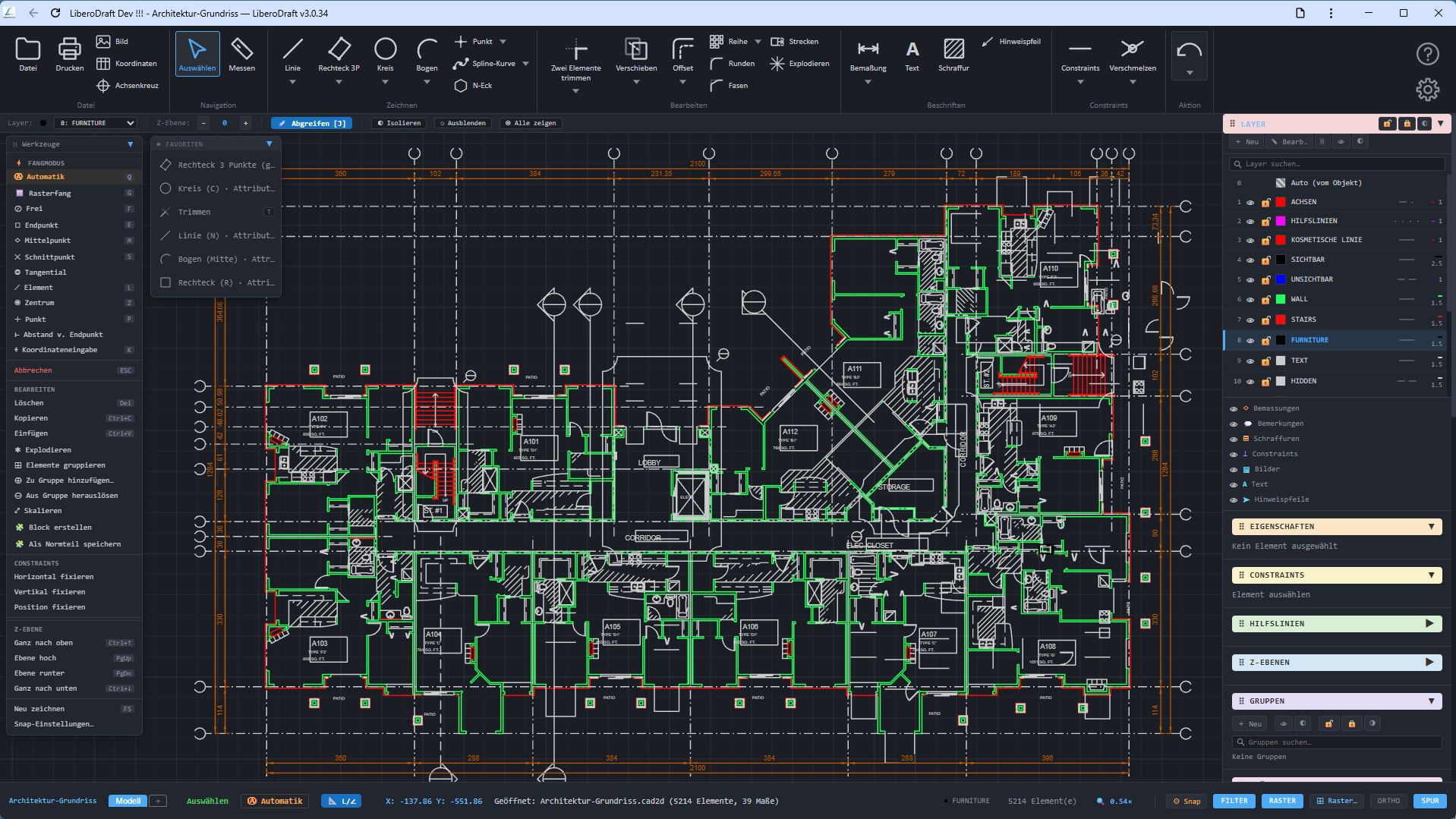
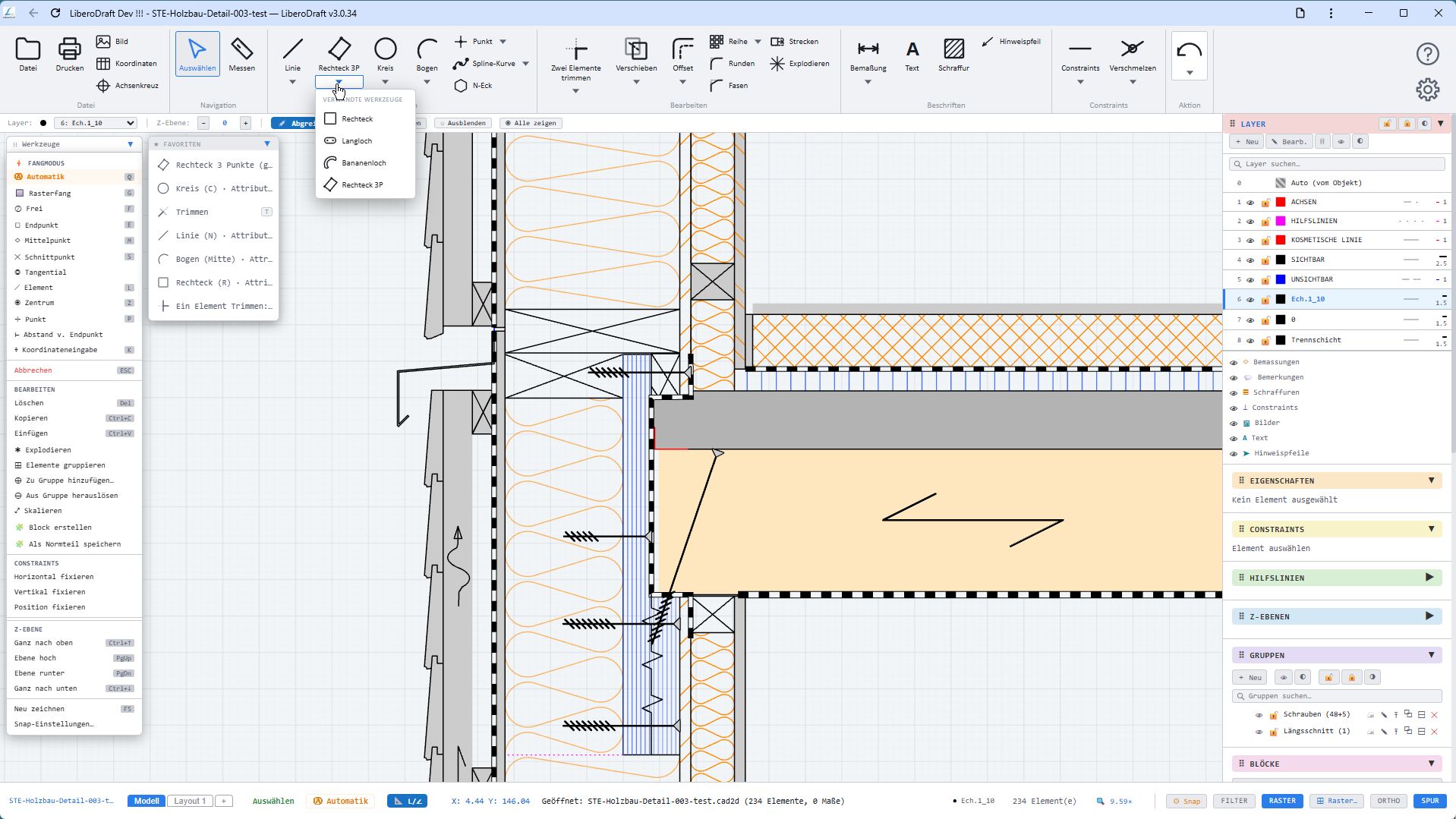
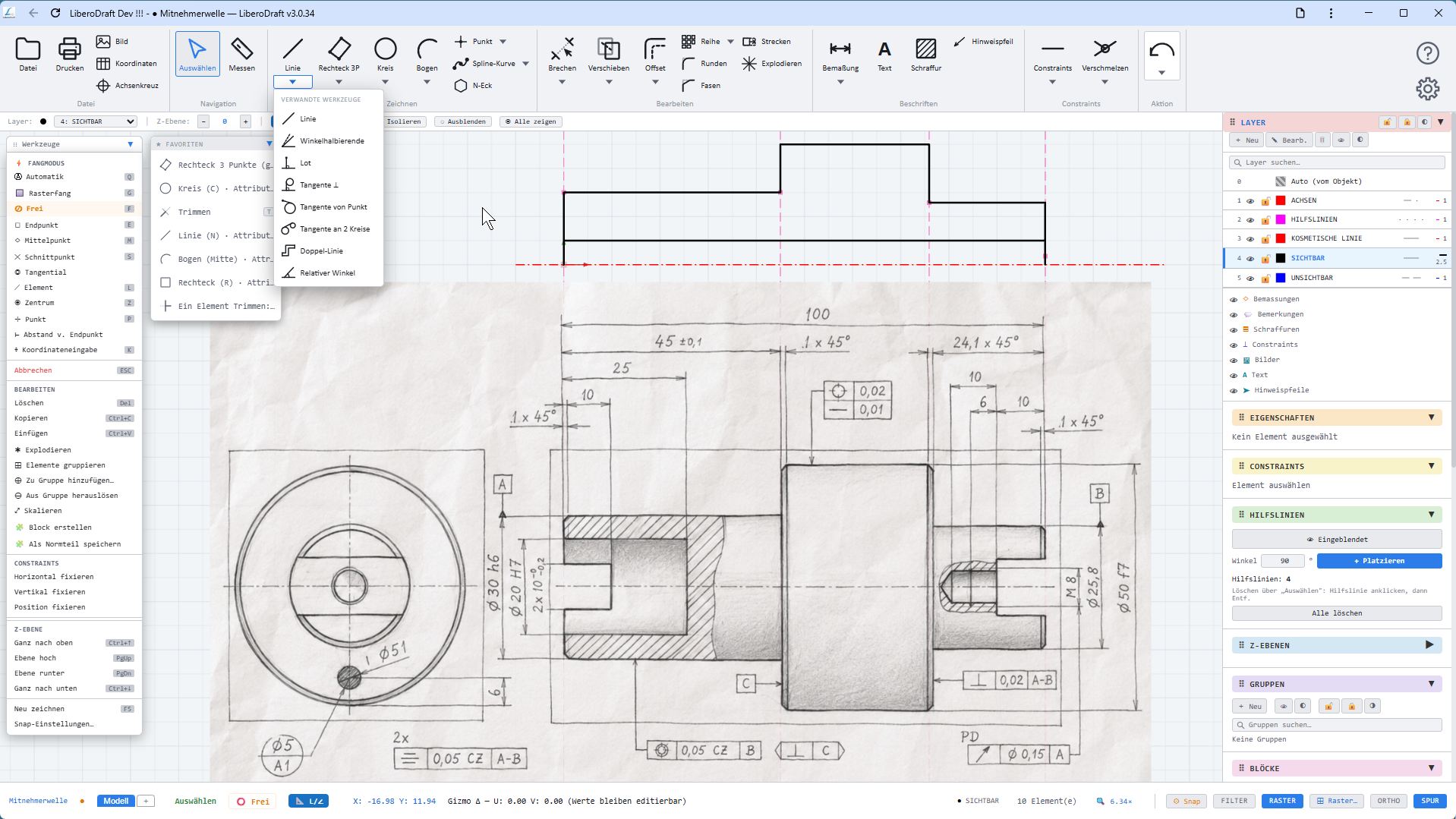
Ready in seconds
LiberoDraft opens directly in the web browser. No installer, no long updates and no heavy CAD environment for simple drawings.
Start fast. Draw freely. Save locally.
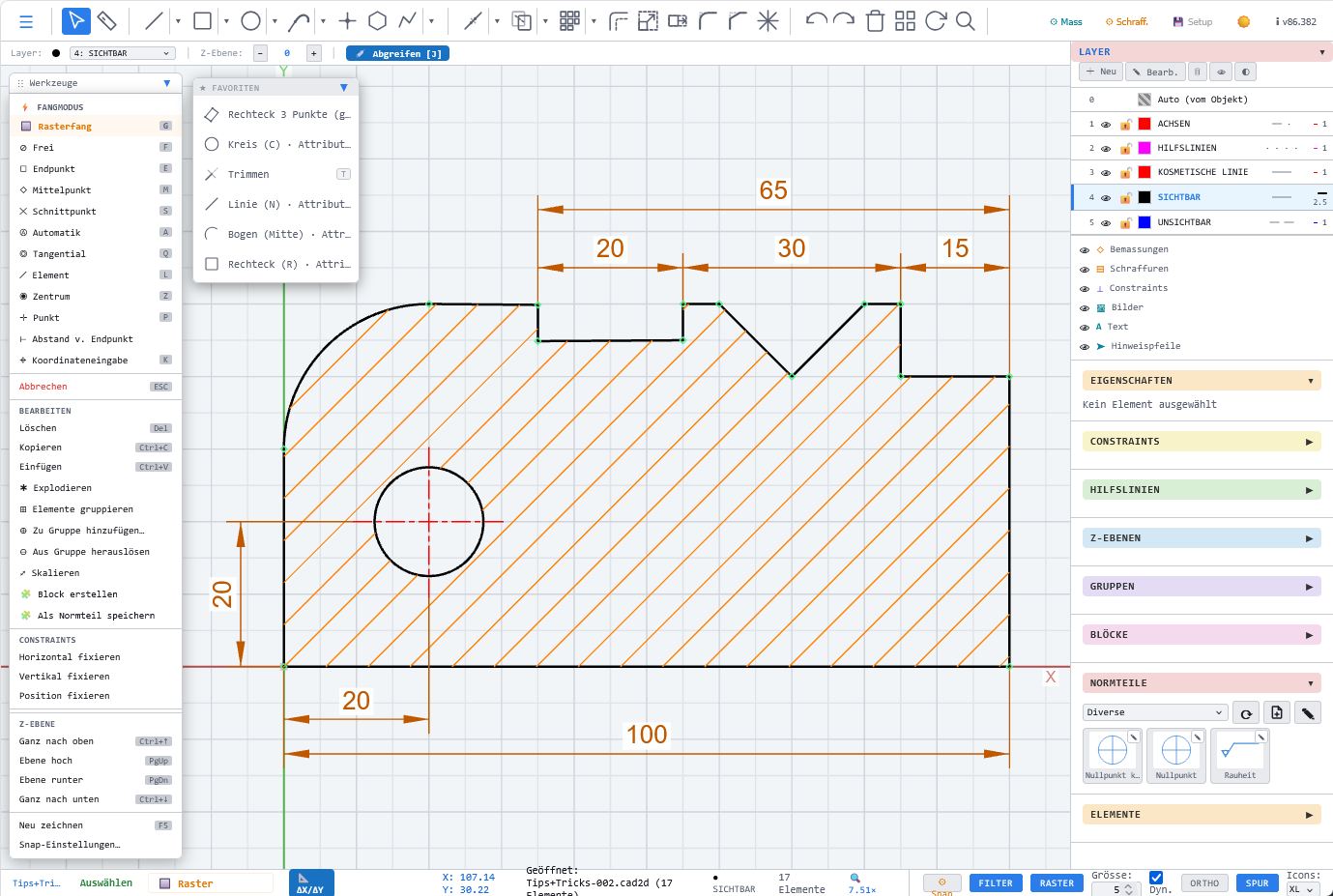
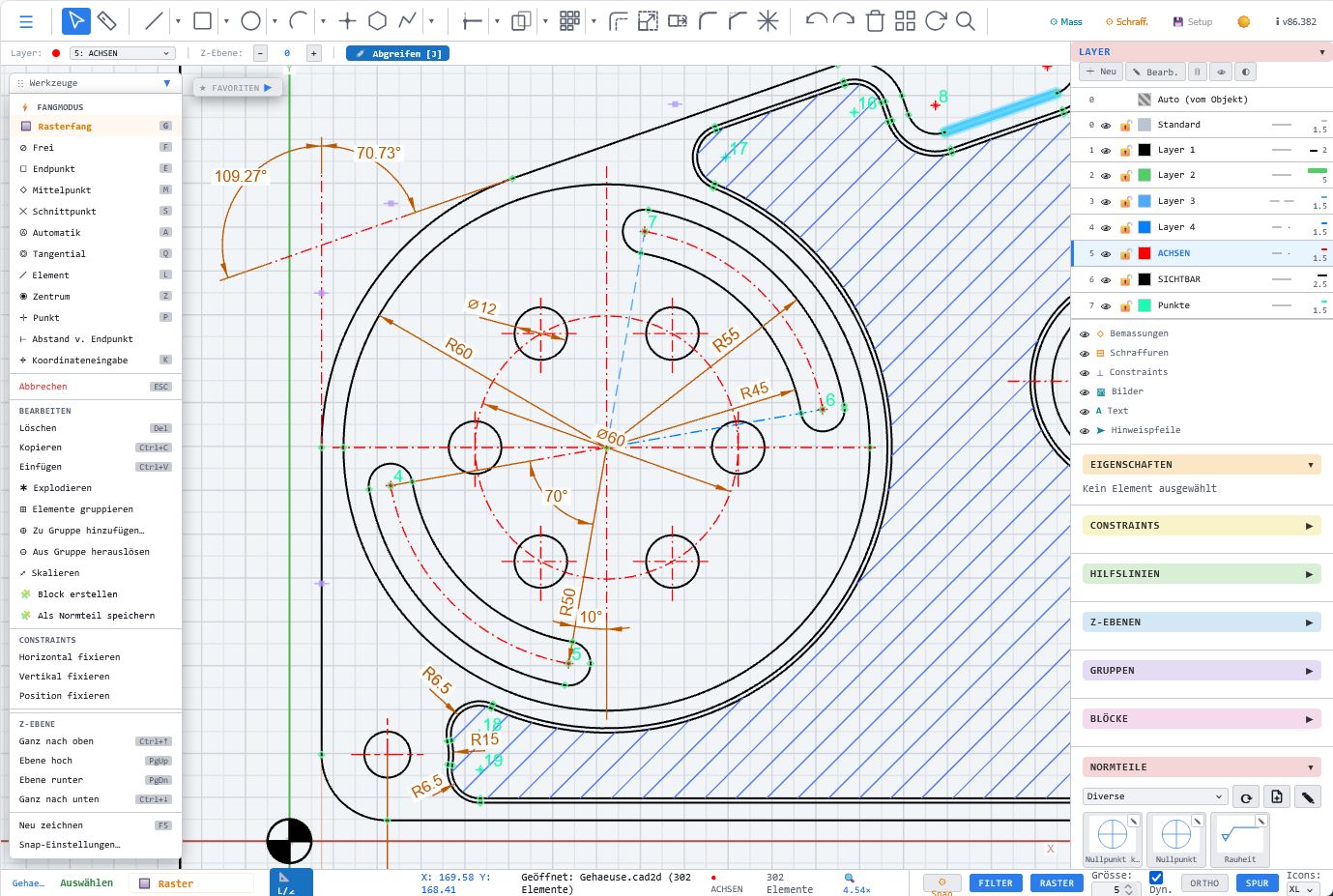
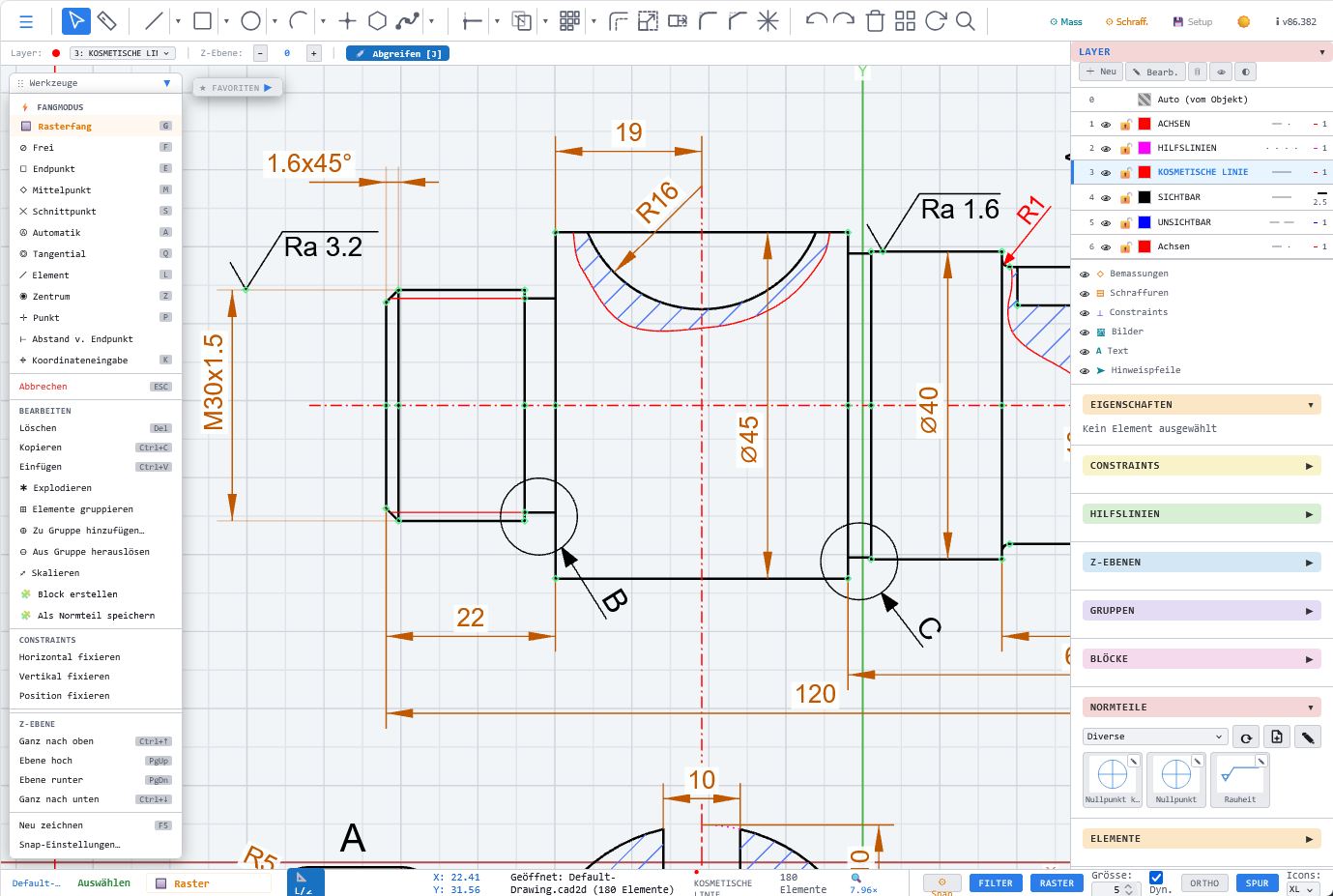
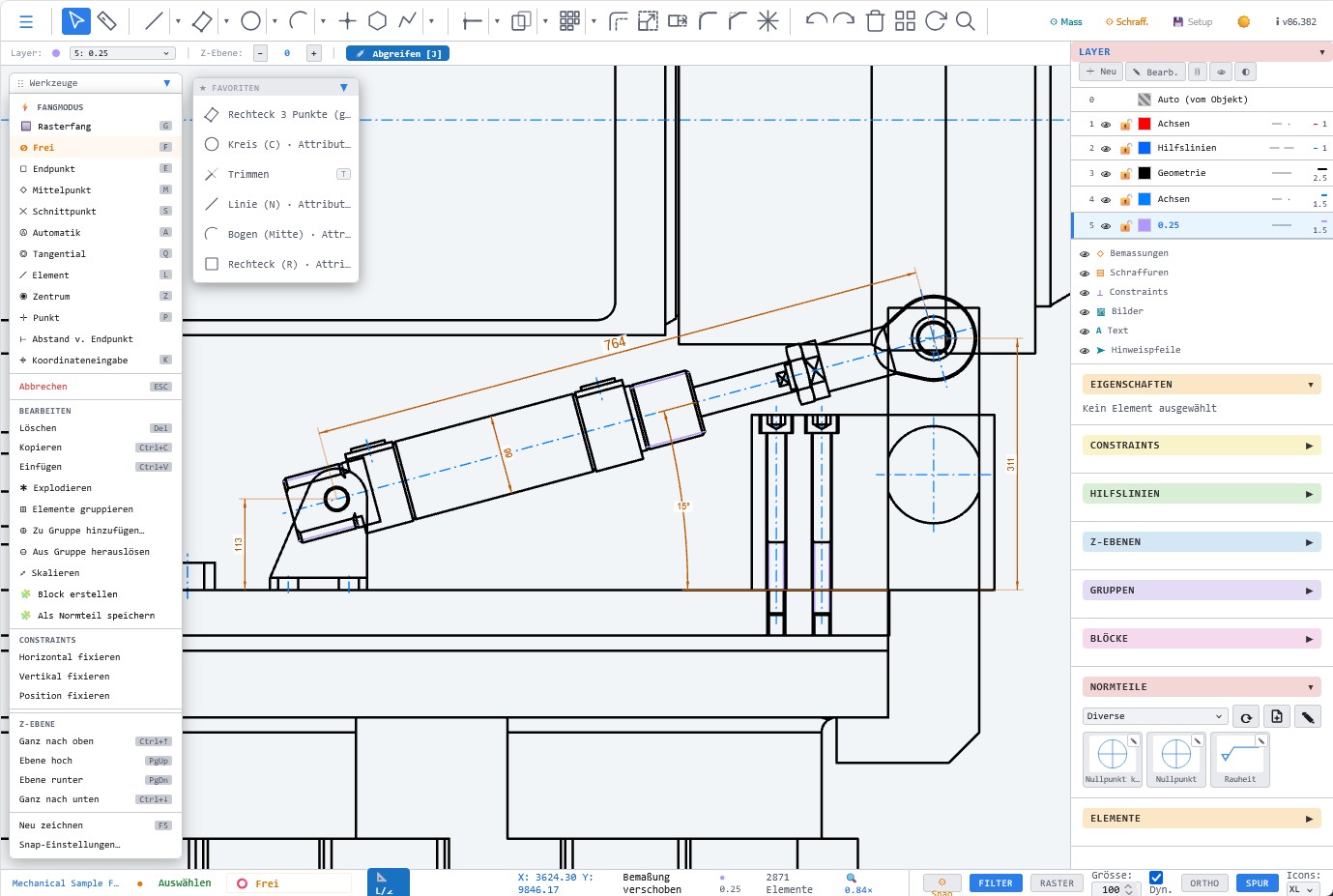
Draw, design, dimension and export – without installation, without subscription pressure and without forced cloud storage. Your files remain local on your own computer.
Chrome, Firefox, Edge, Brave and modern browsers are supported. The CAD program runs locally in your browser.
Many users do not want to start a complete 3D CAD project, create a model, generate a drawing and define a drawing frame for every small plate, angle or sketch. Quick technical 2D drawings need a tool that is immediately ready. This is exactly what LiberoDraft was built for: light, fast, platform-independent and usable directly in the web browser.
Whether Windows PC, Mac, Linux computer, iPad or tablet: LiberoDraft starts through the browser and is available immediately without a classic installation. Ideal for the workshop, school, office, field work and quick design ideas in between.
LiberoDraft focuses on what matters in 2D CAD: clean geometry, fast operation, precise dimensioning and direct output.
LiberoDraft opens directly in the web browser. No installer, no long updates and no heavy CAD environment for simple drawings.
Save as many own files as you like locally on your computer. LiberoDraft does not force you into a cloud.
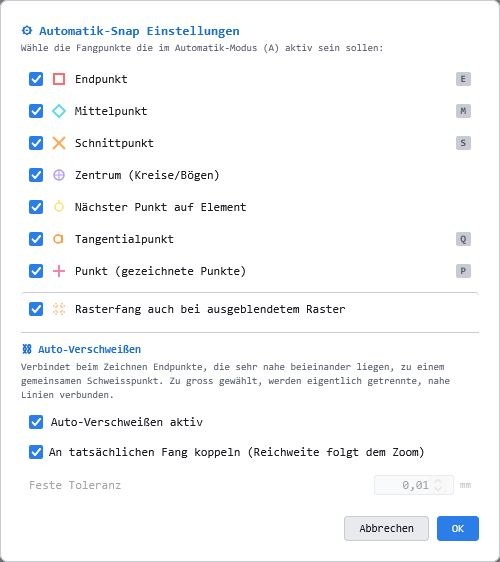
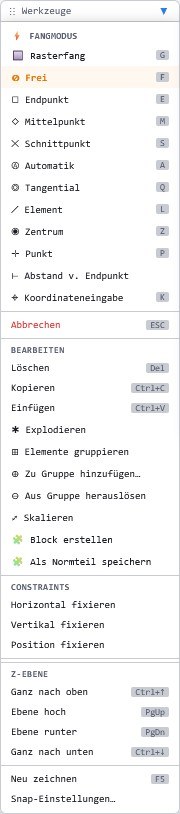
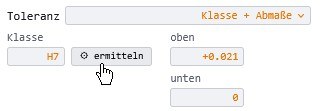
Automatic tolerance fields, coordinate tables, snapping tools and hatching support clean technical documentation.
Windows, Mac, Linux, tablet or iPad – all you need is a modern browser.
LiberoDraft combines classic 2D CAD with constraint-based sketches for controlled geometry.
DXF, SVG and PDF output keep your drawings usable in workshops, training and downstream processes.
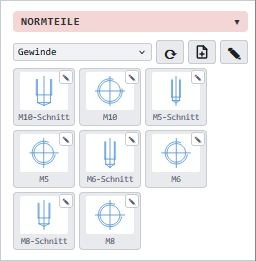
The following cards show important program windows and functions. Each card can be opened and briefly explains what the respective area in LiberoDraft is used for.

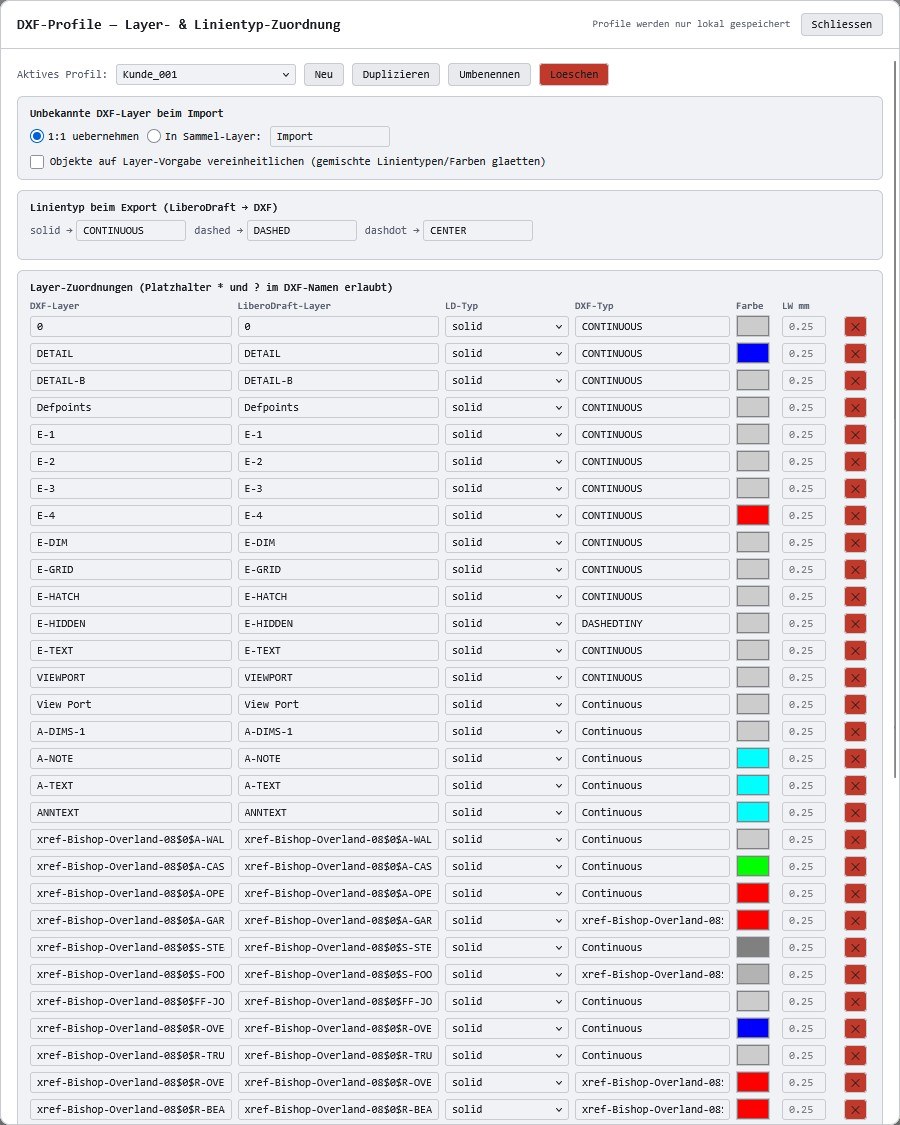
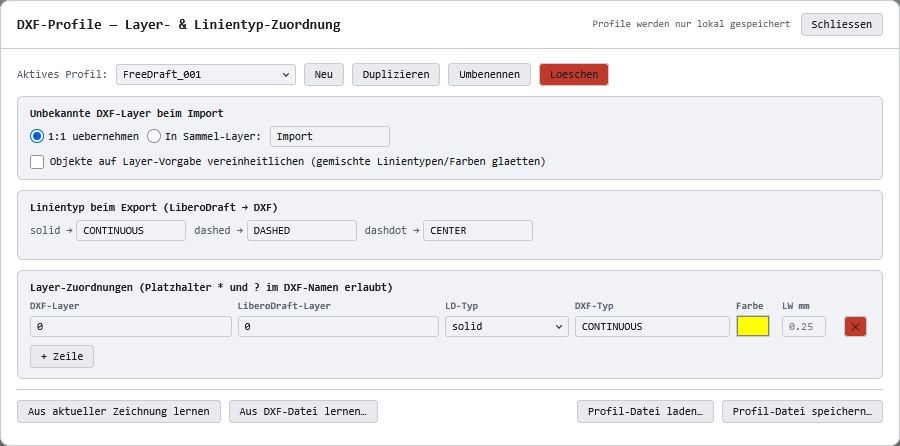
DXF profiles help you control import and export settings for the target CAD software.

DXF profiles help you control import and export settings for the target CAD software.

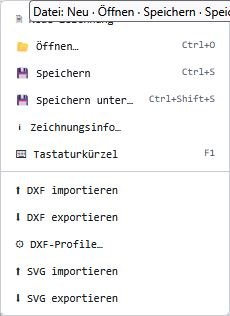
This dialog shows important options from File, Export & Printing and makes working with LiberoDraft easier to understand.

The print dialog combines paper format, scale, line weights and preview for clean output.

This dialog shows important options from File, Export & Printing and makes working with LiberoDraft easier to understand.

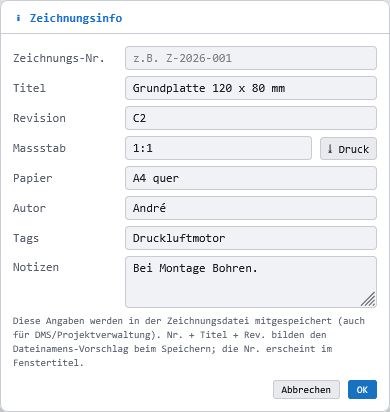
Drawing information keeps important metadata and project details visible.

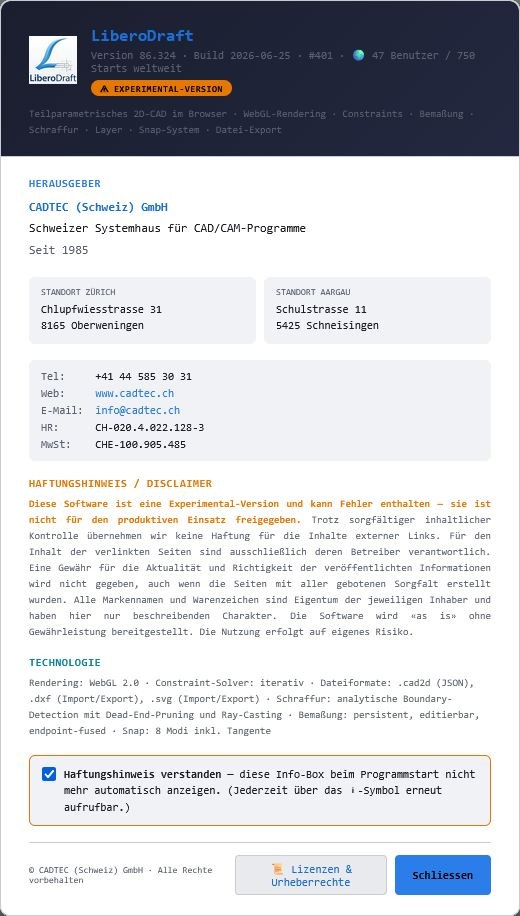
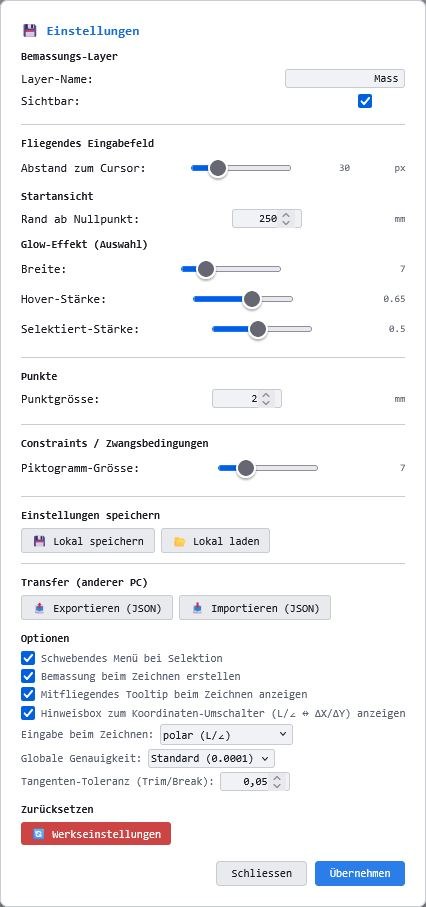
This dialog shows important options from Operation & Settings and makes working with LiberoDraft easier to understand.

This dialog shows important options from Operation & Settings and makes working with LiberoDraft easier to understand.

This dialog shows important options from Operation & Settings and makes working with LiberoDraft easier to understand.

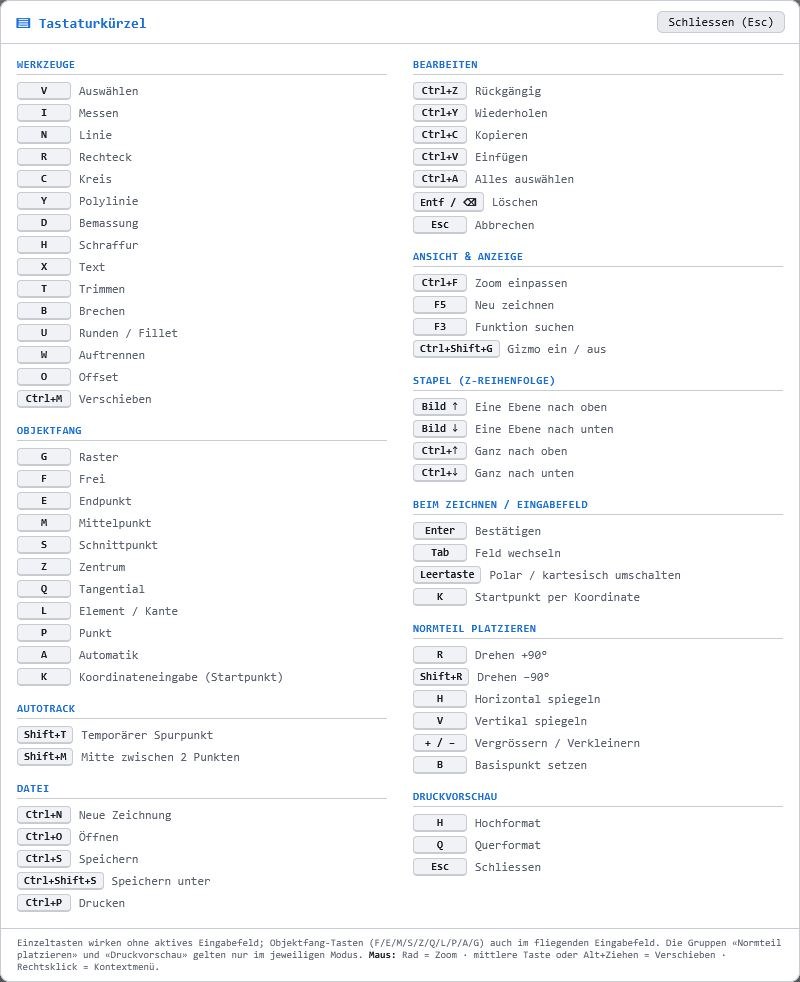
The live command search helps you find tools and functions quickly while working.

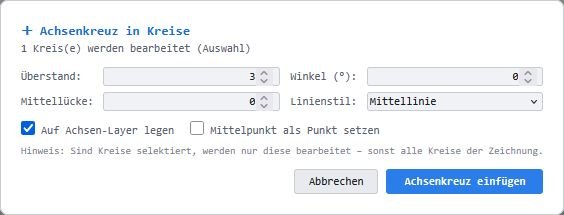
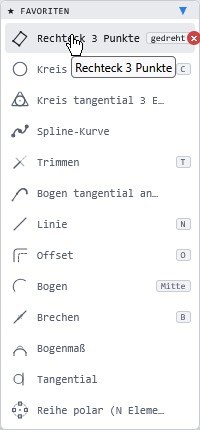
This dialog shows important options from Drawing, Editing & Construction and makes working with LiberoDraft easier to understand.

This dialog shows important options from Drawing, Editing & Construction and makes working with LiberoDraft easier to understand.

This dialog shows important options from Drawing, Editing & Construction and makes working with LiberoDraft easier to understand.

This dialog shows important options from Drawing, Editing & Construction and makes working with LiberoDraft easier to understand.

This dialog shows important options from Drawing, Editing & Construction and makes working with LiberoDraft easier to understand.

This dialog shows important options from Drawing, Editing & Construction and makes working with LiberoDraft easier to understand.

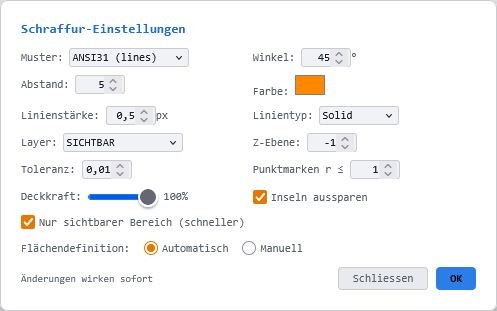
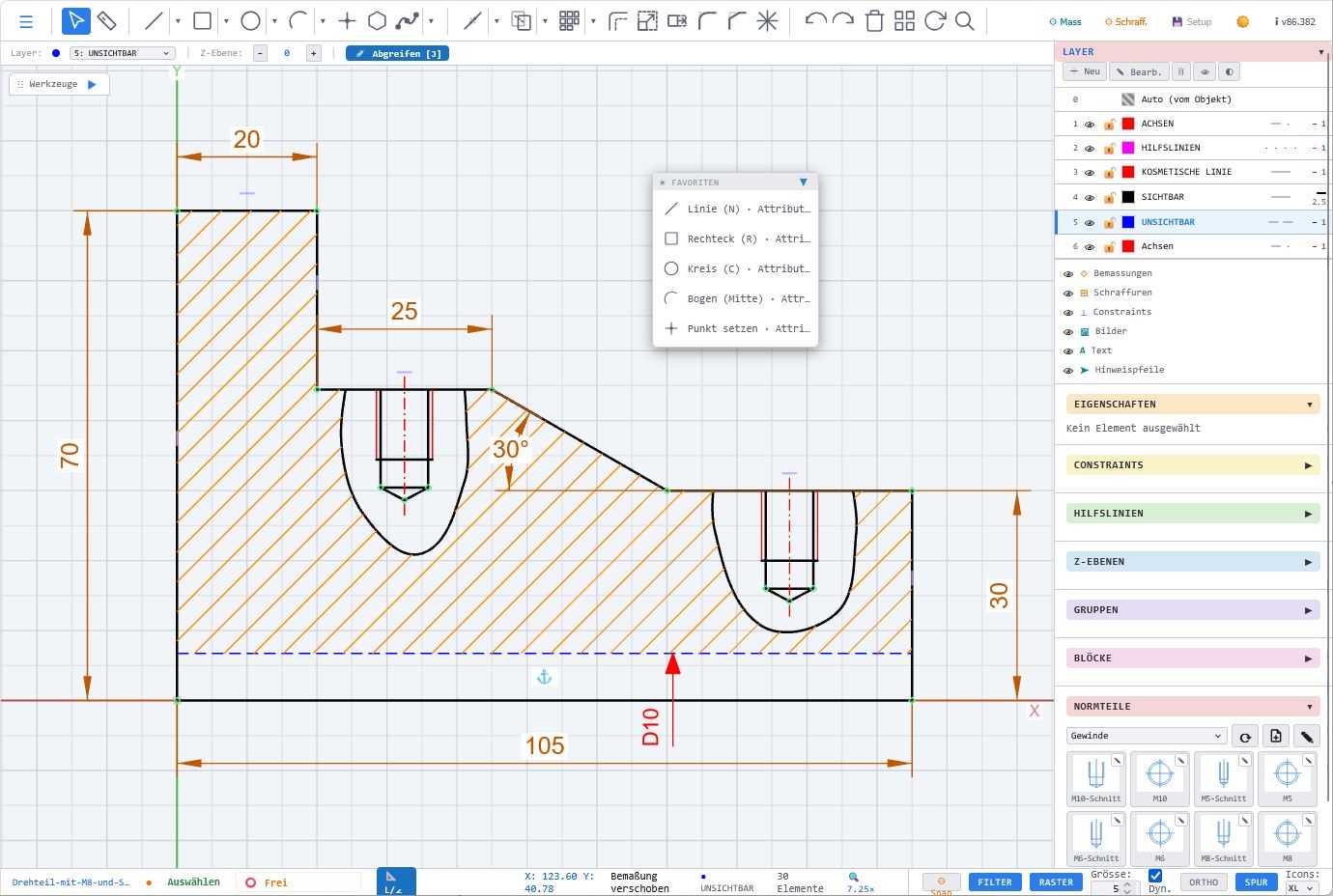
Hatching fills selected areas with clear technical patterns.

This dialog shows important options from Drawing, Editing & Construction and makes working with LiberoDraft easier to understand.

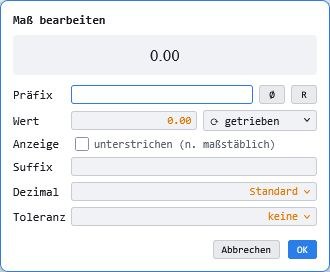
This dialog shows important options from Dimensioning, Measuring & Tables and makes working with LiberoDraft easier to understand.

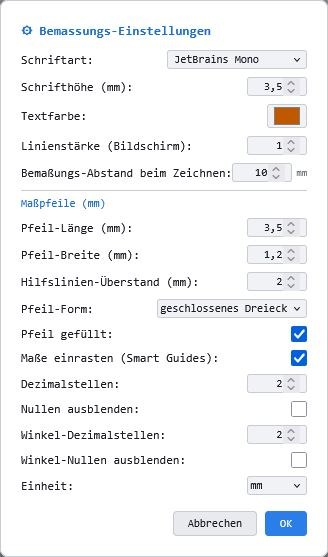
Dimension settings control the appearance and behavior of dimensions.

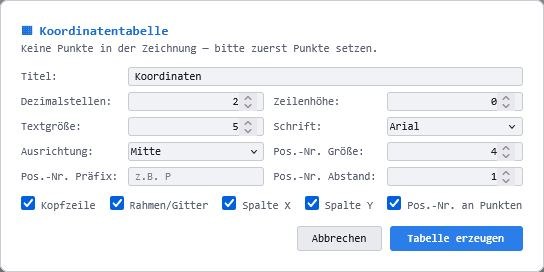
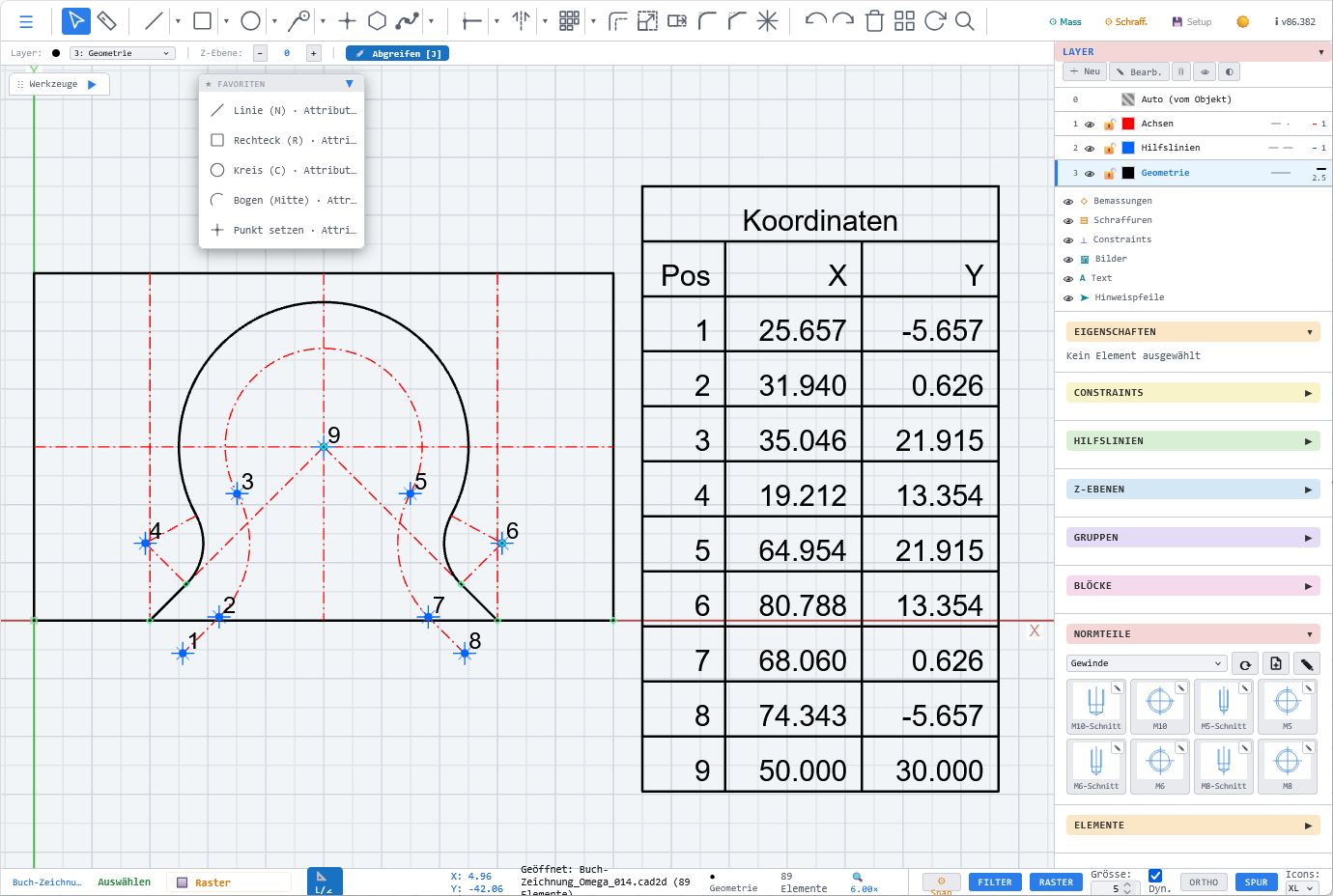
The coordinate table documents relevant points clearly and precisely.

This dialog shows important options from Dimensioning, Measuring & Tables and makes working with LiberoDraft easier to understand.

This dialog shows important options from Dimensioning, Measuring & Tables and makes working with LiberoDraft easier to understand.

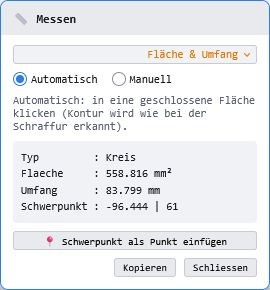
The measuring dialog supports quick checks of lengths, distances and geometry.

This dialog shows important options from Dimensioning, Measuring & Tables and makes working with LiberoDraft easier to understand.

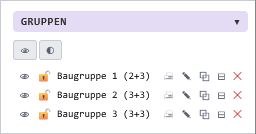
Assemblies organize grouped components and reusable drawing structures.

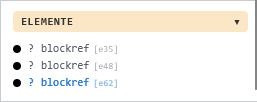
This dialog shows important options from Management in the Right Panel and makes working with LiberoDraft easier to understand.

This dialog shows important options from Management in the Right Panel and makes working with LiberoDraft easier to understand.

This dialog shows important options from Management in the Right Panel and makes working with LiberoDraft easier to understand.

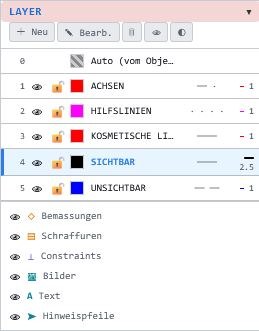
Layers organize drawing content and make complex drawings easier to manage.

This dialog shows important options from Management in the Right Panel and makes working with LiberoDraft easier to understand.

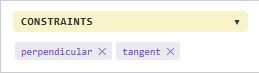
Constraints define geometric or parametric conditions for controlled sketch geometry.

This dialog shows important options from LiberoDraft Functions and makes working with LiberoDraft easier to understand.

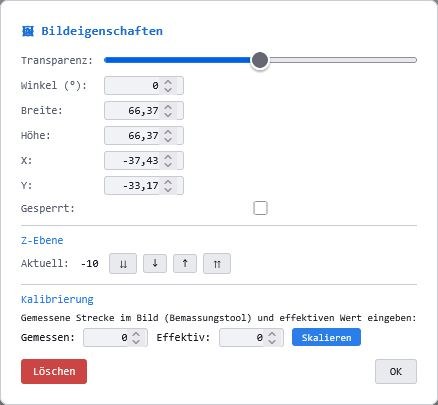
Z planes help structure 2D elements on different drawing levels.
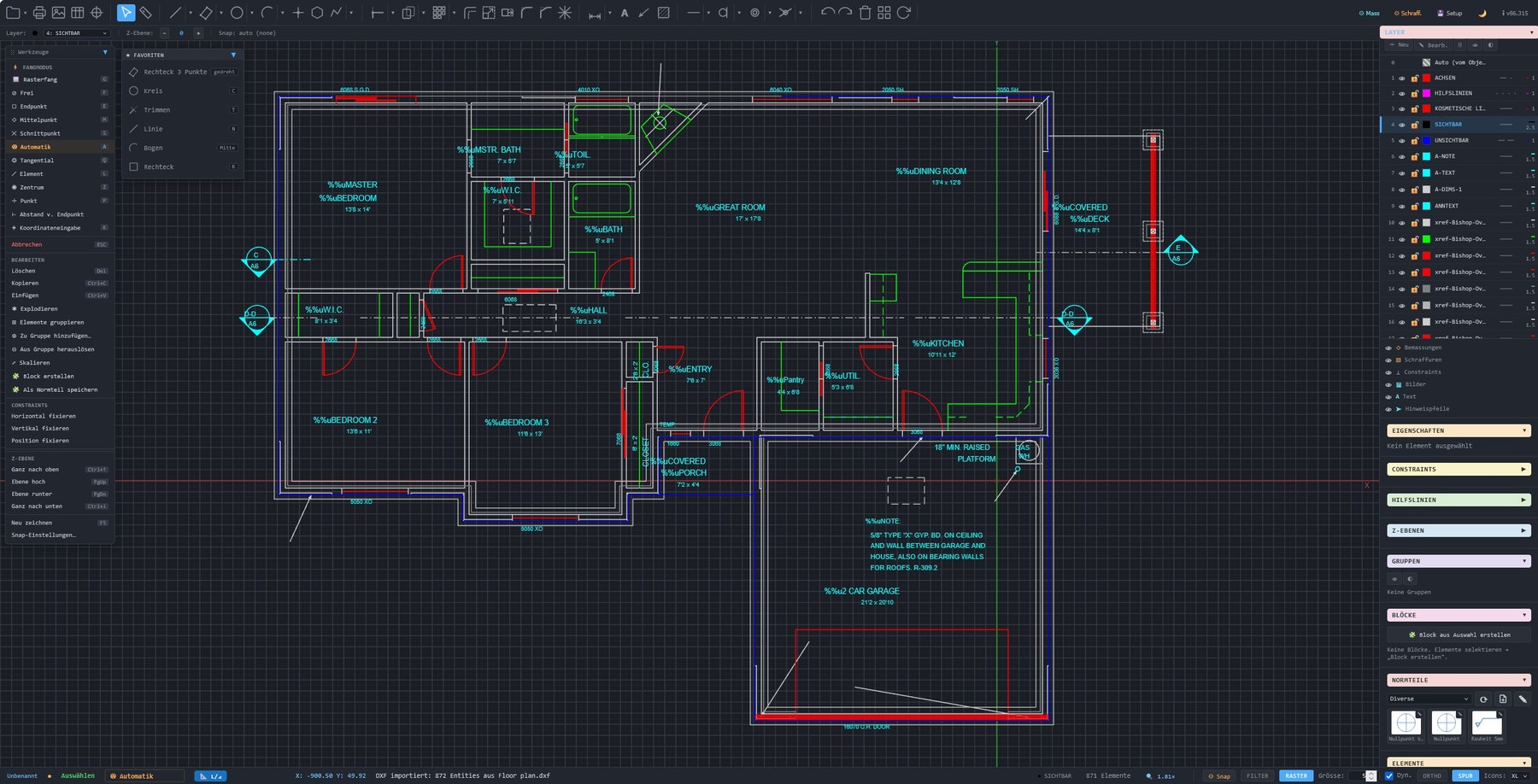
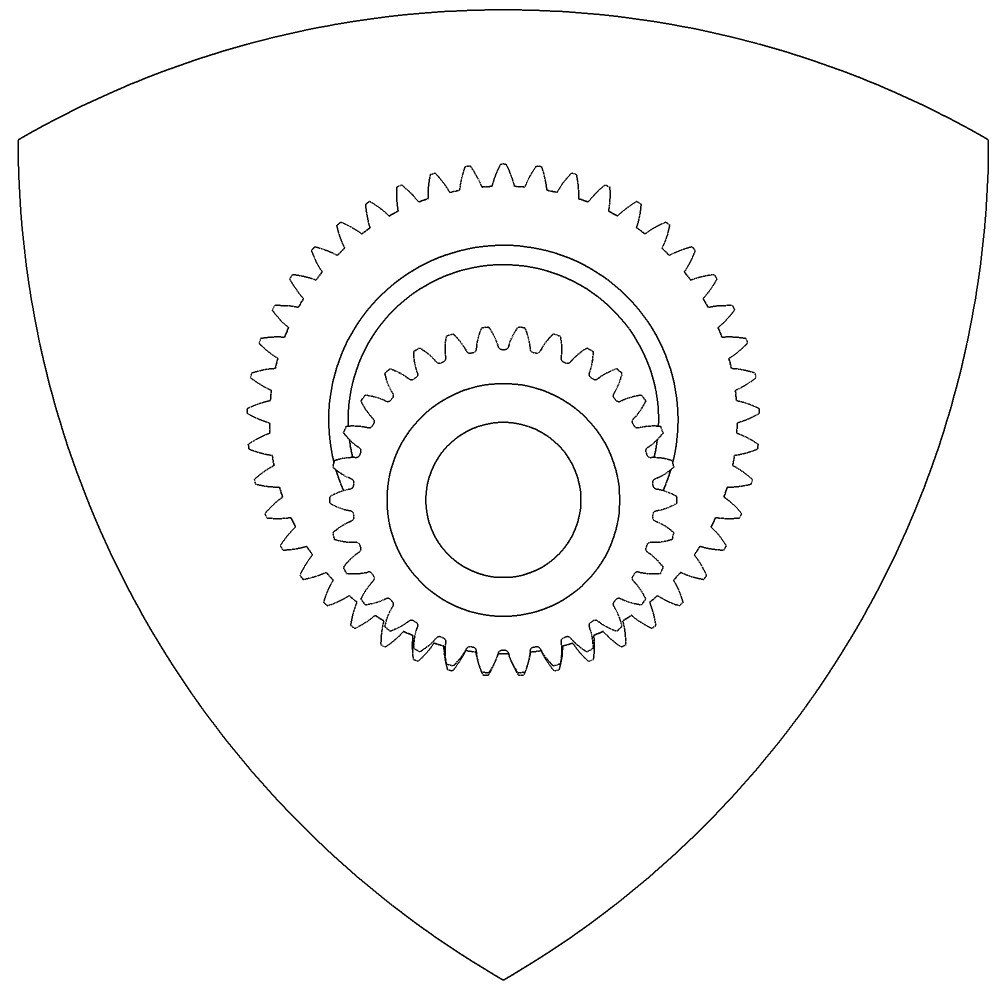
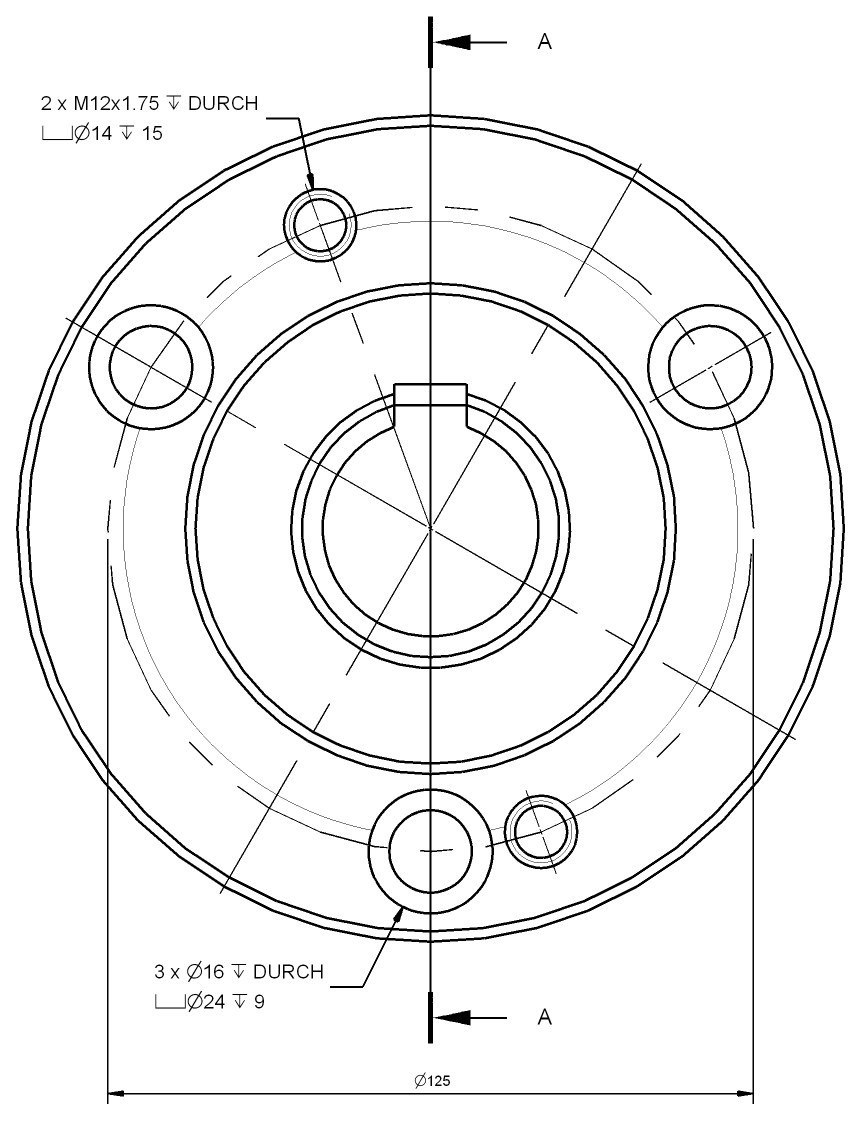
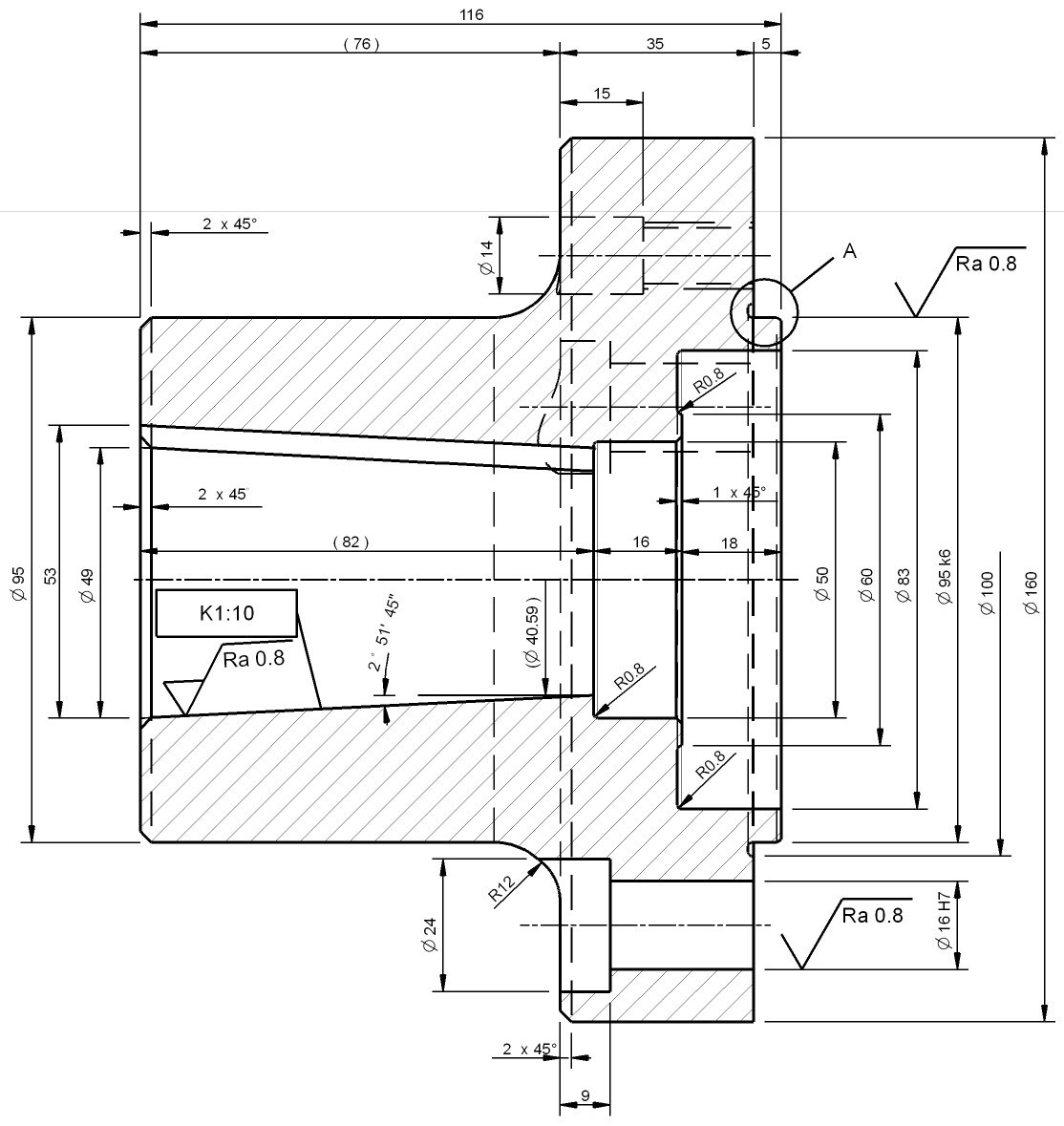
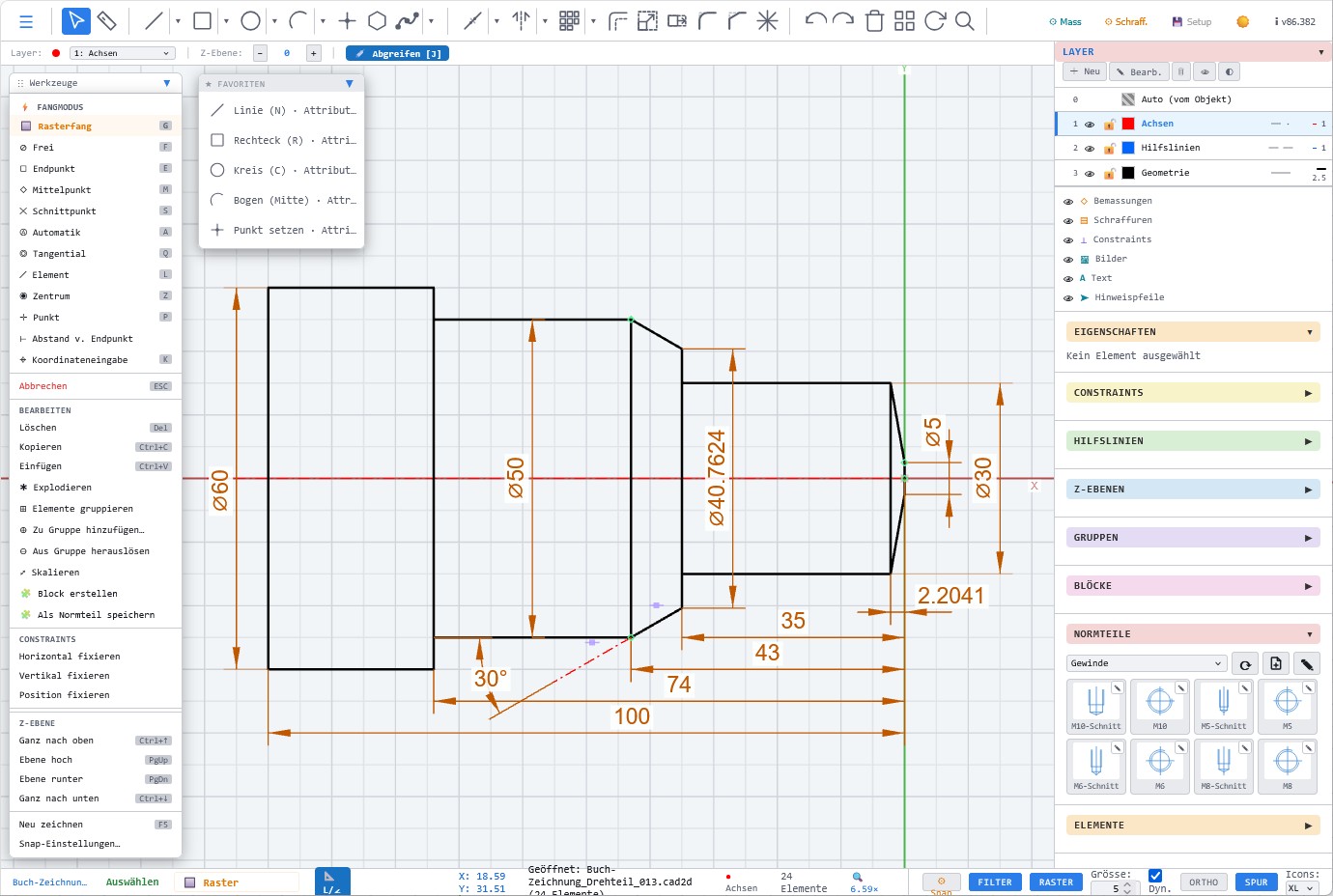
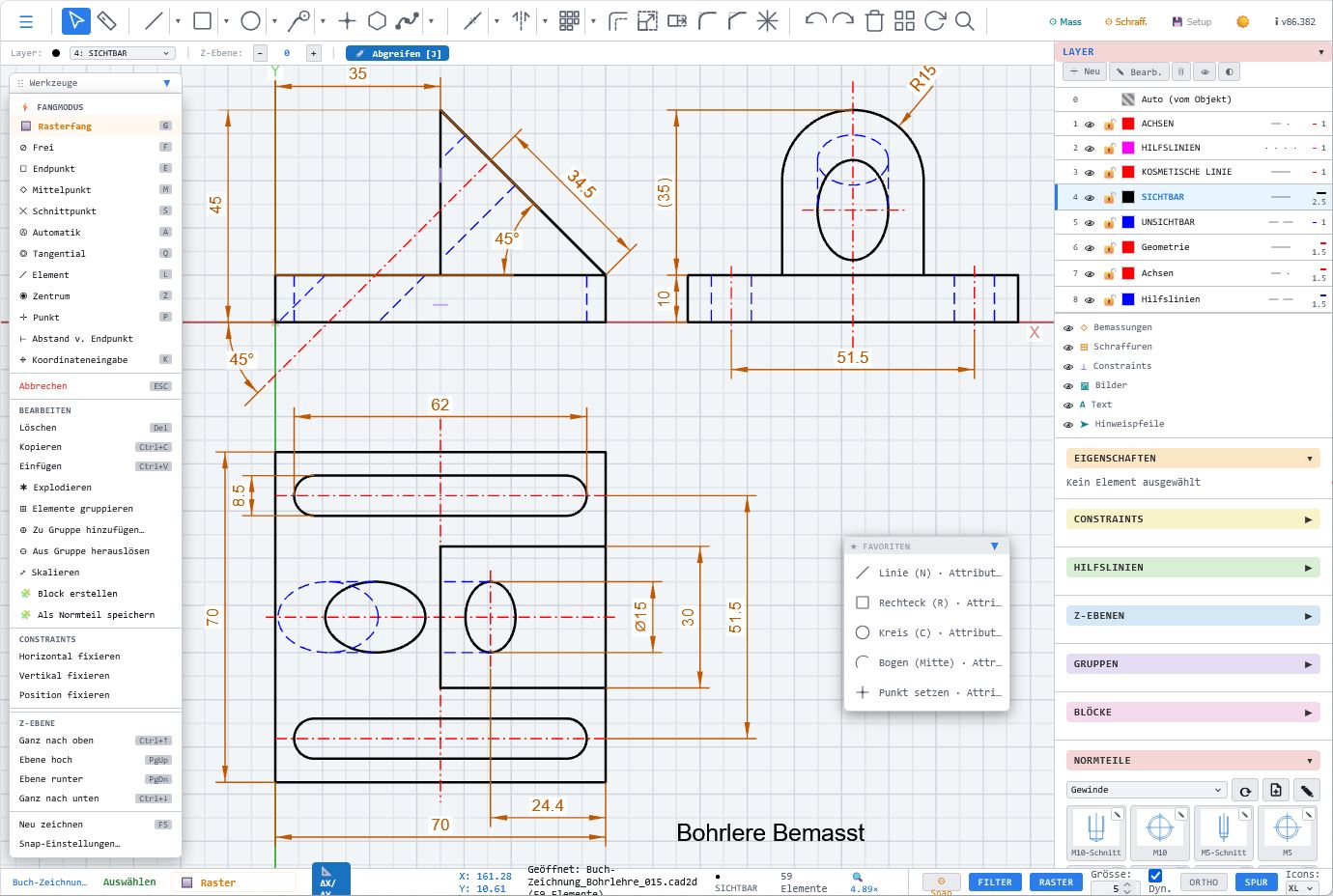
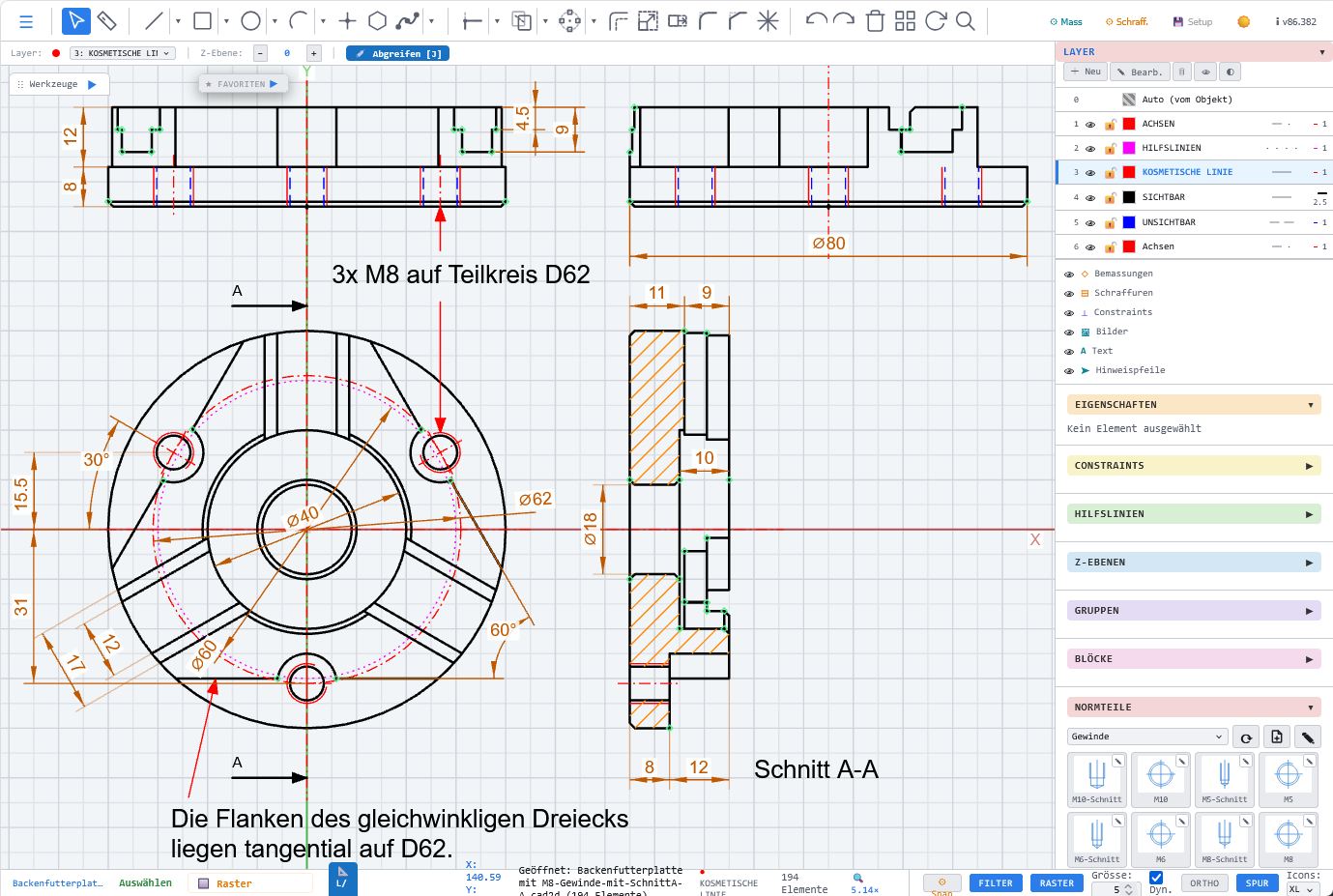
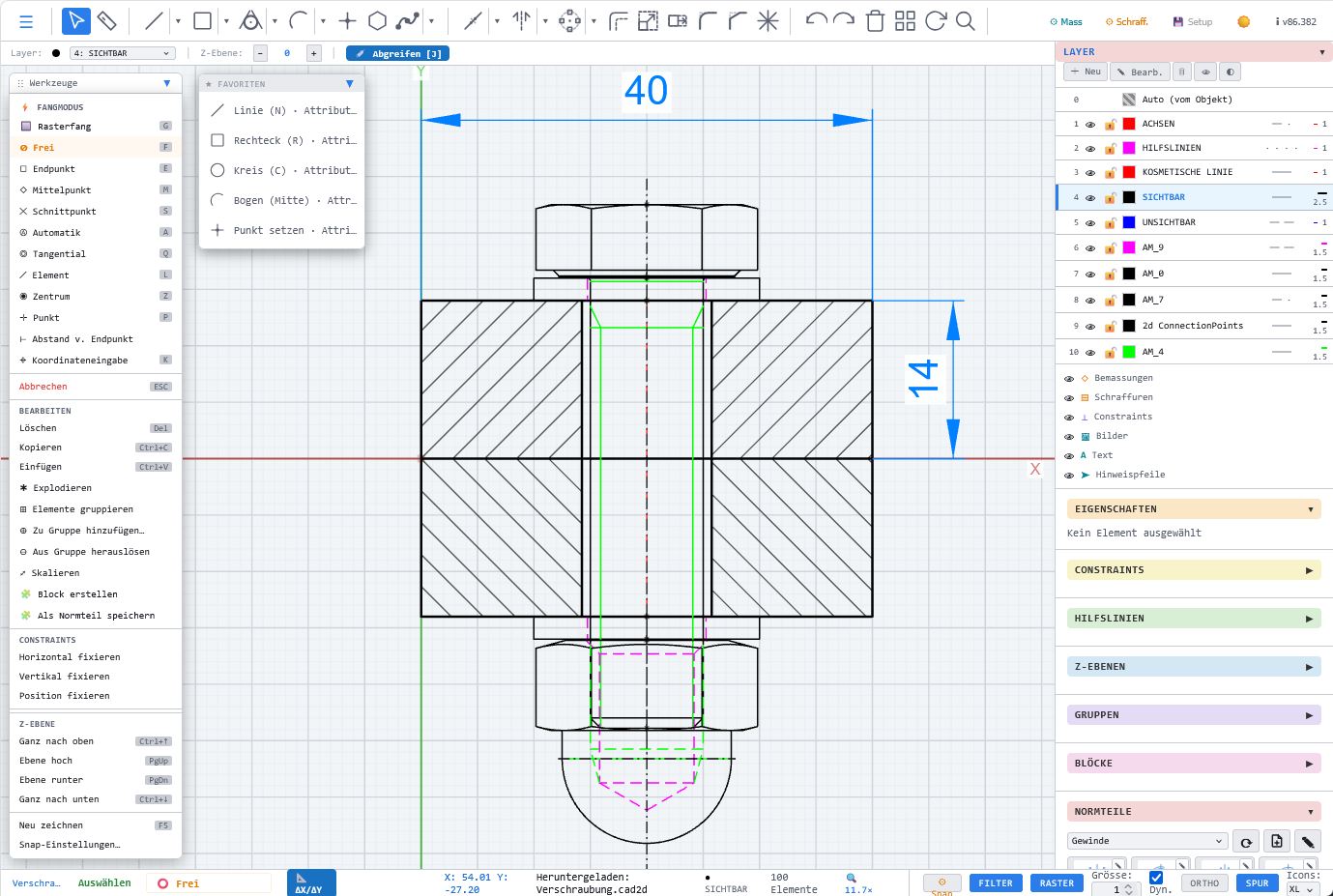
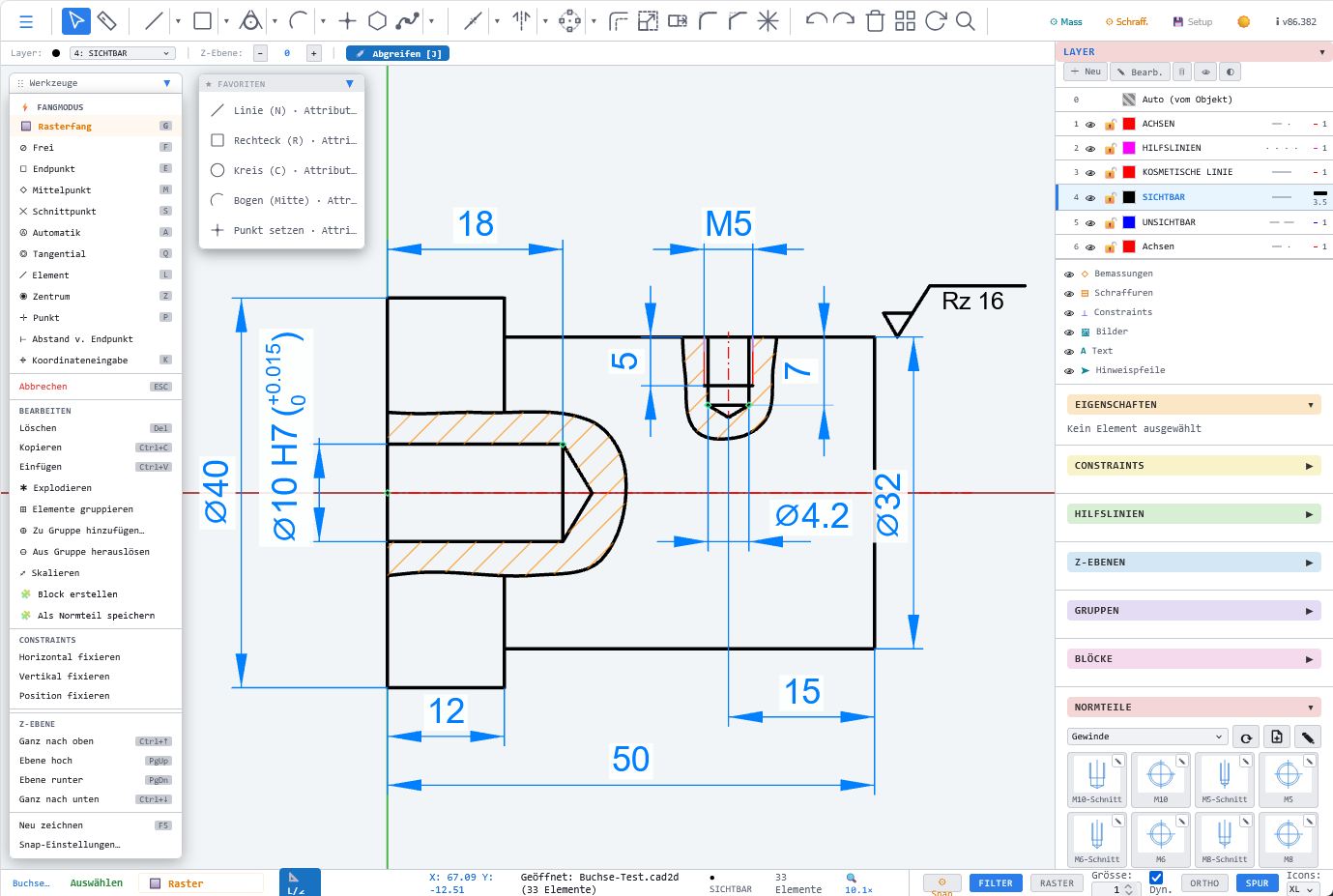
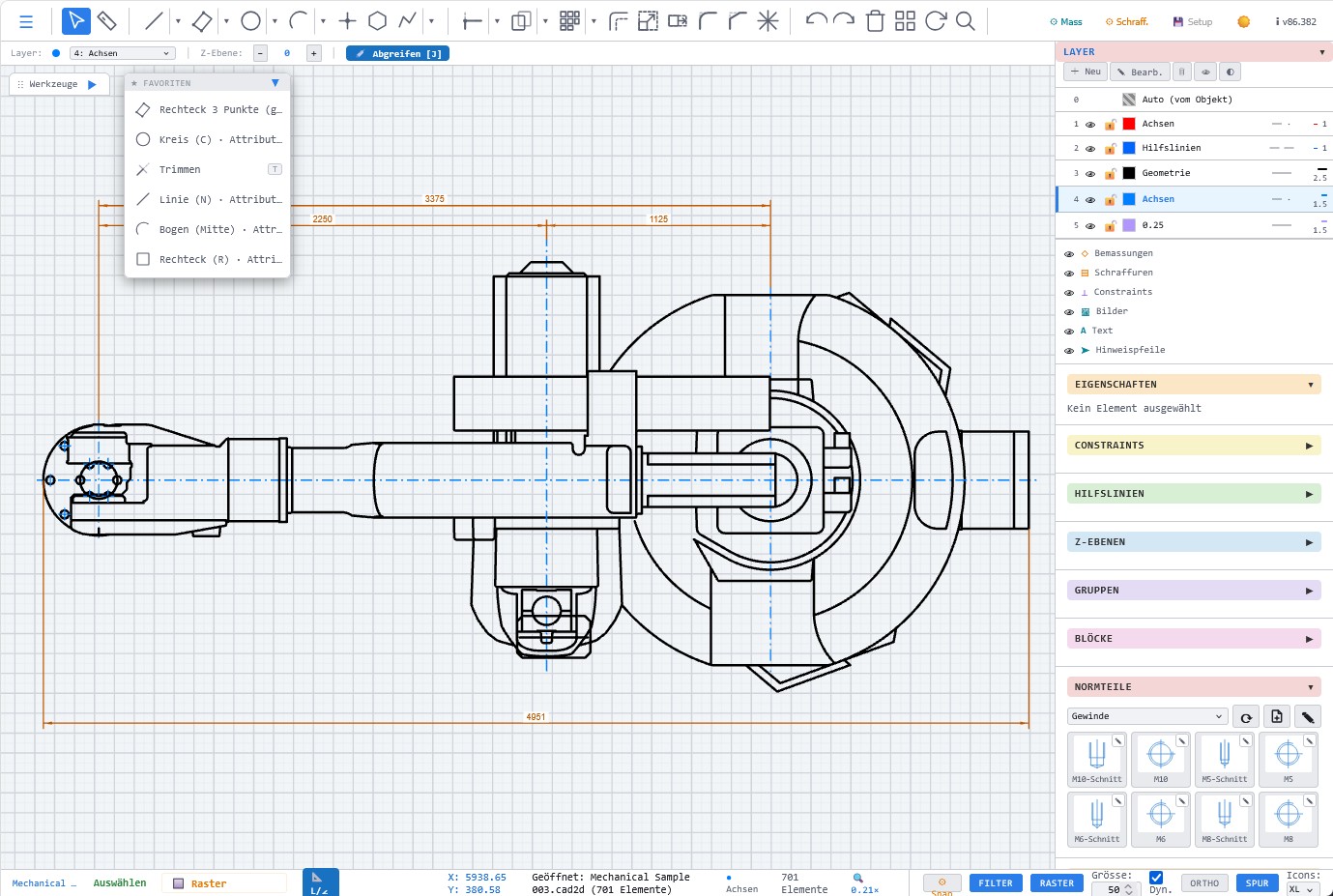
These example drawings show what technical 2D drawings, dimensioning, hatching, coordinates and construction details can look like in the browser.
Practice example directly from LiberoDraft, created in the browser and suitable for local storage.
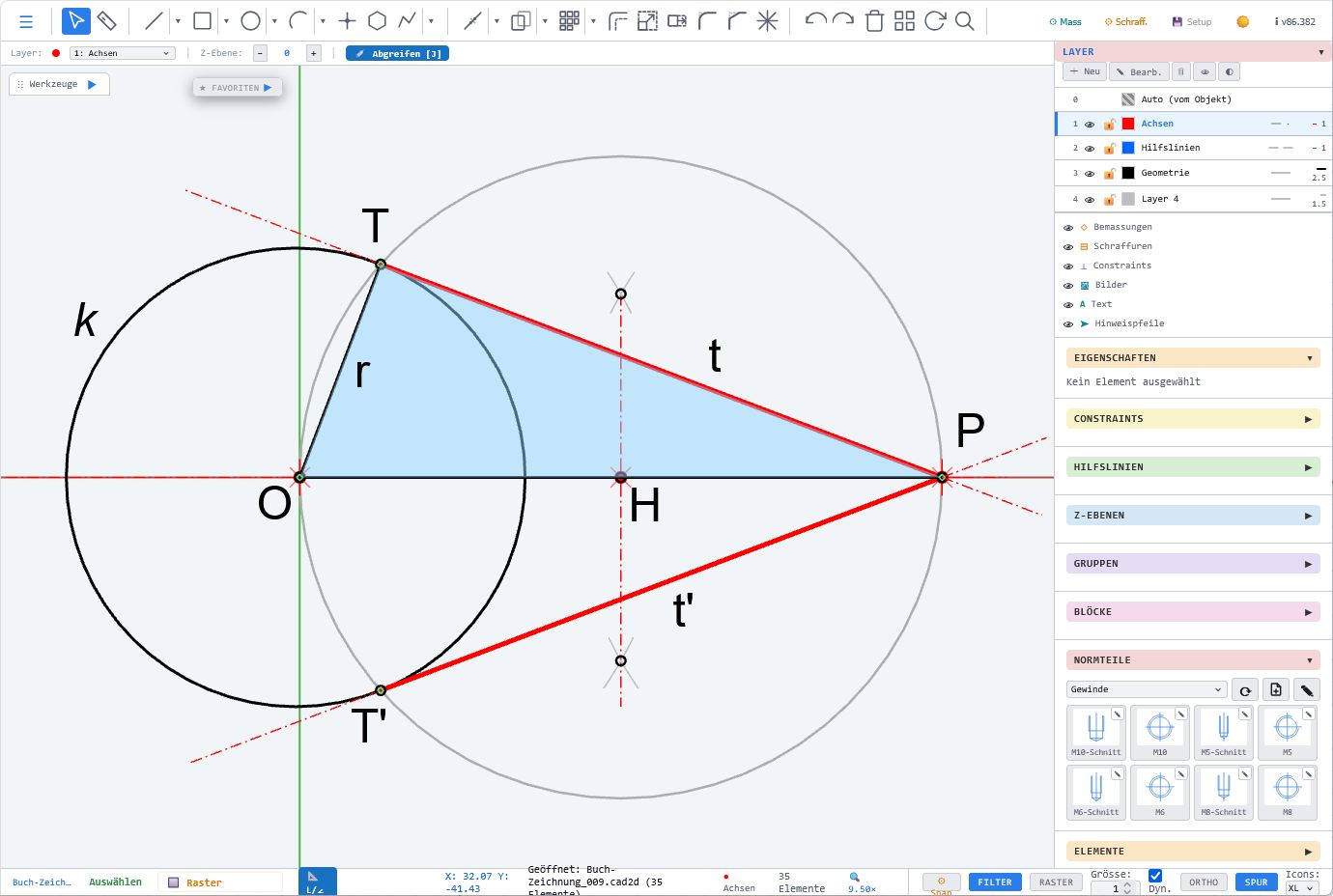
Descriptive geometry example for the Thales circle, created as a clear construction in LiberoDraft.
Prism construction as a practice example for geometric representations in LiberoDraft.
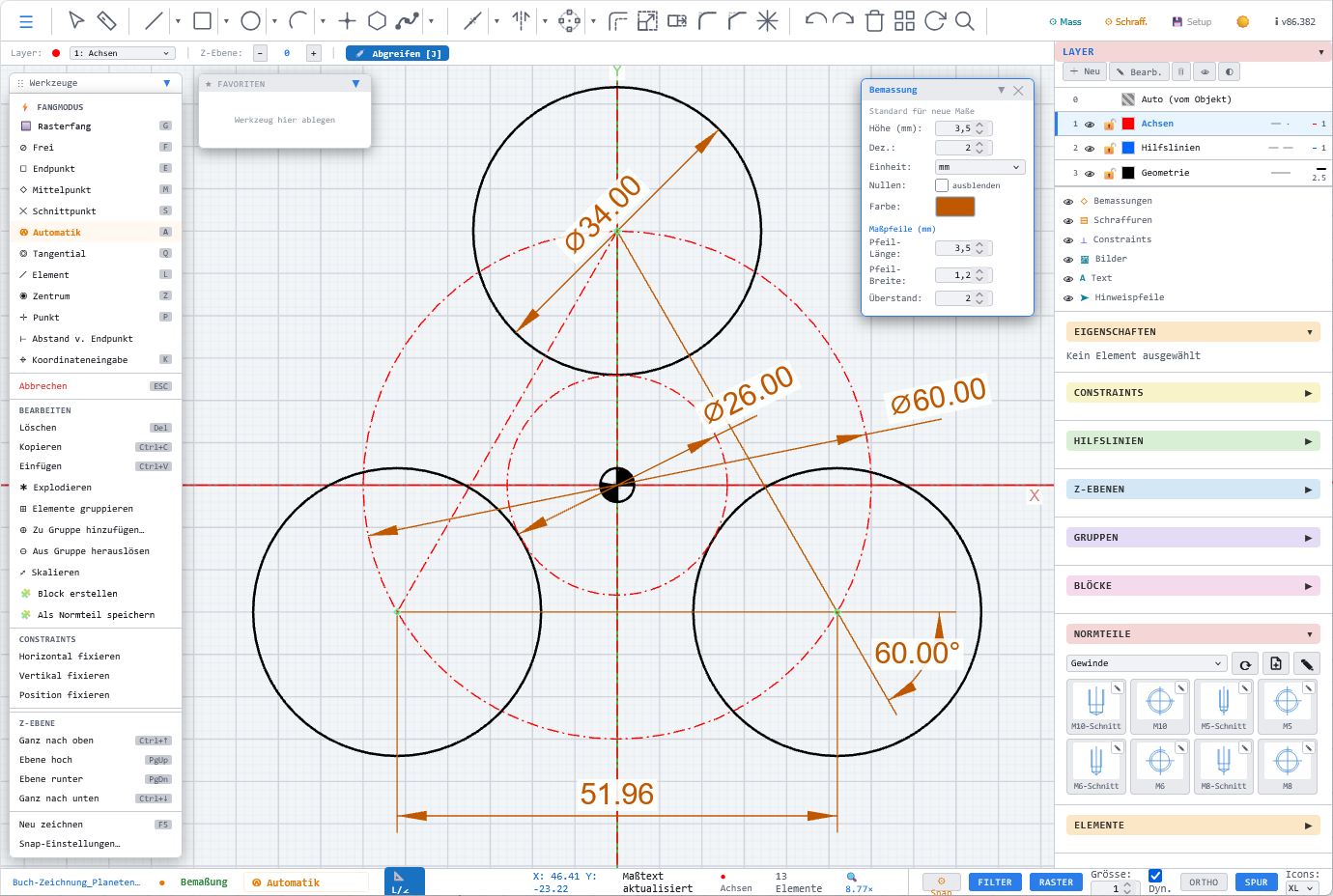
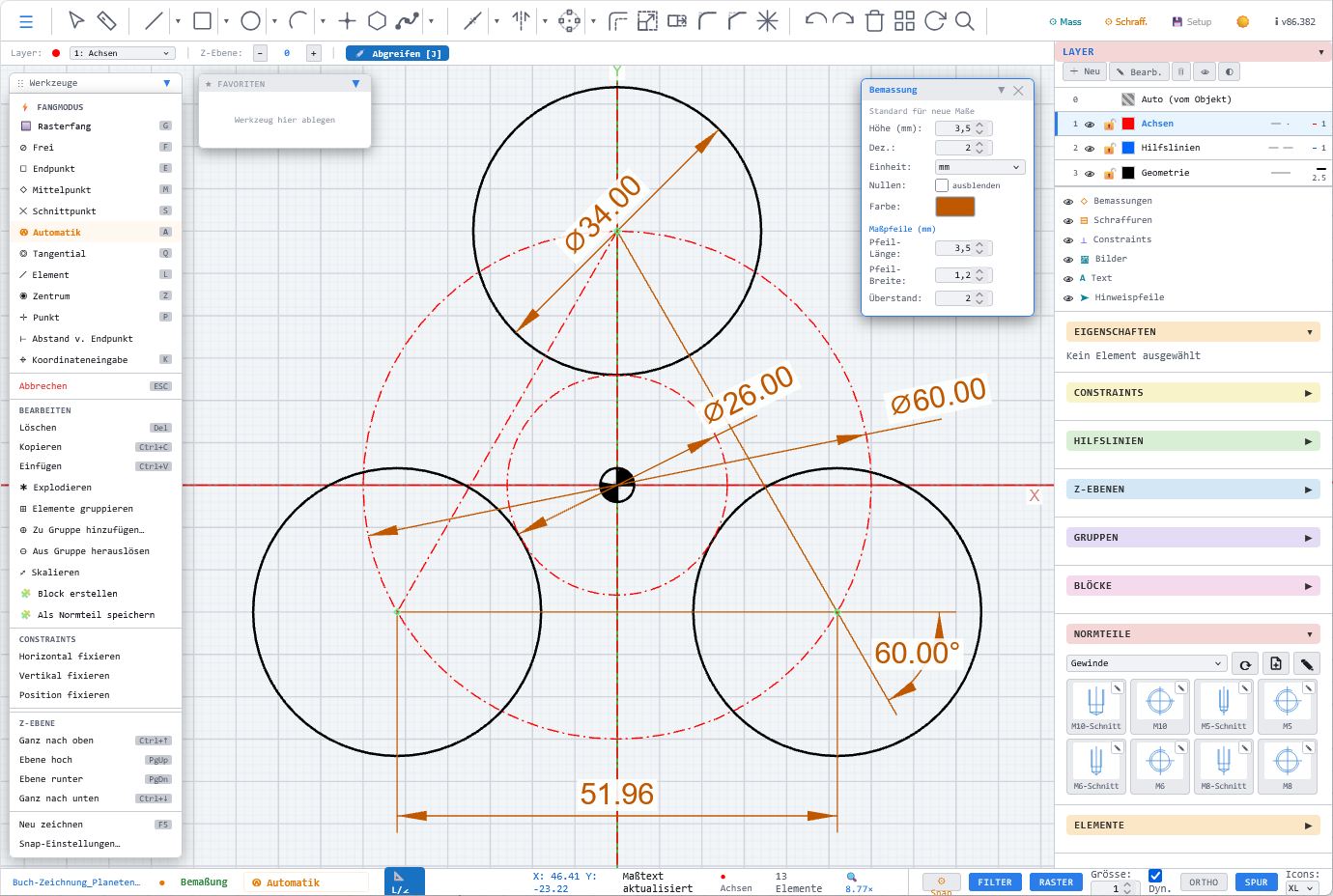
Creative planets example showing that illustrative 2D graphics are also possible.
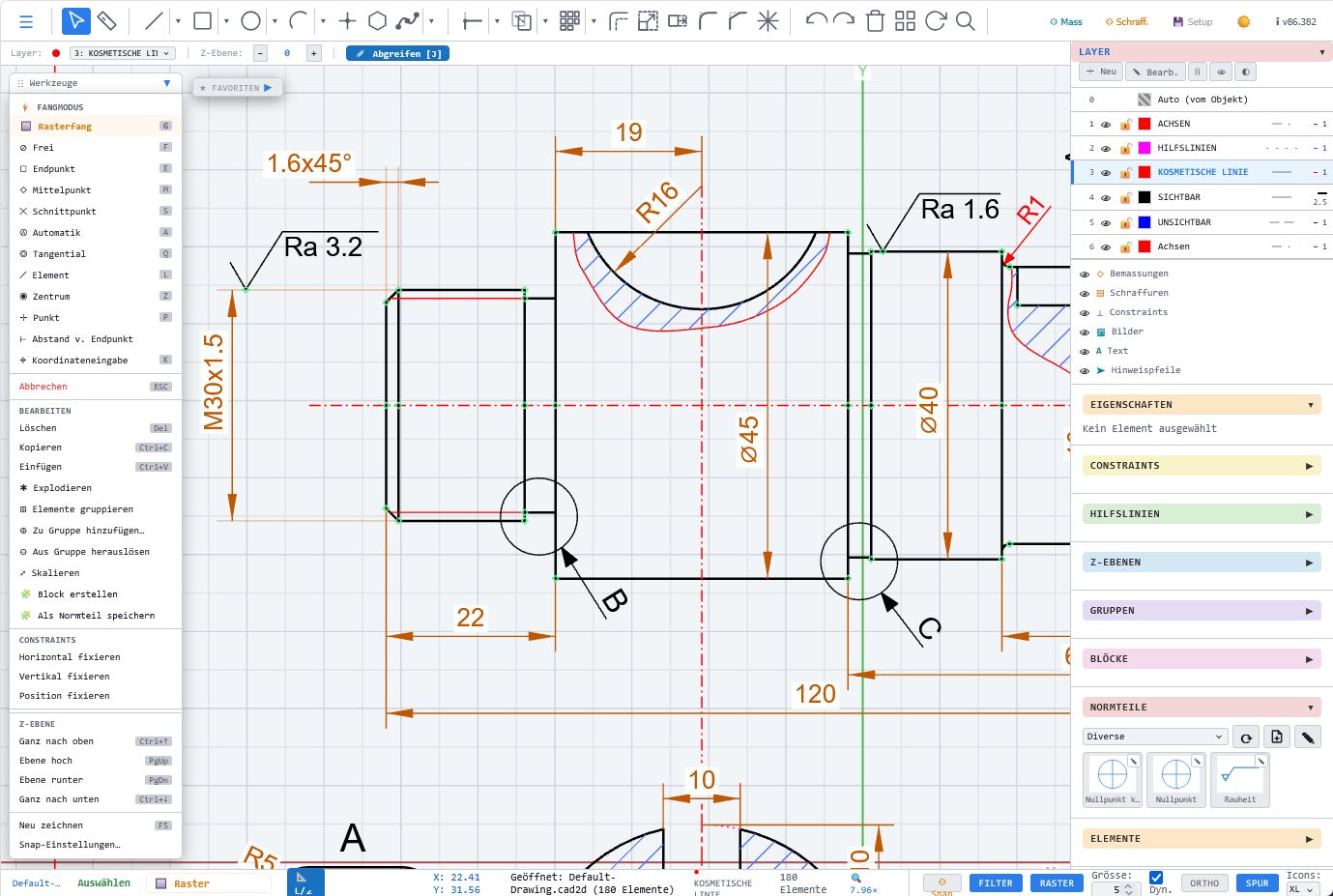
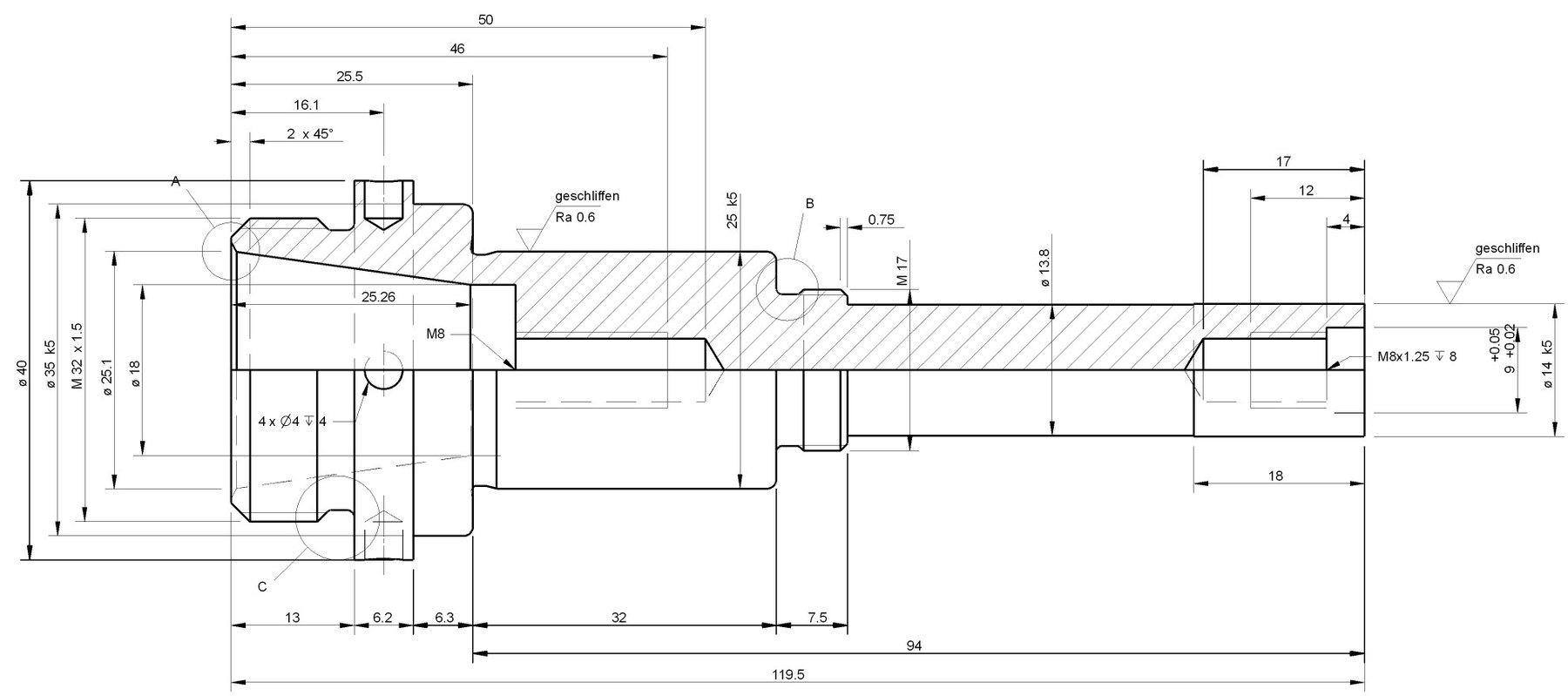
Turned-part drawing with technical dimensioning and a clean contour.
Practice example directly from LiberoDraft, created in the browser and suitable for local storage.
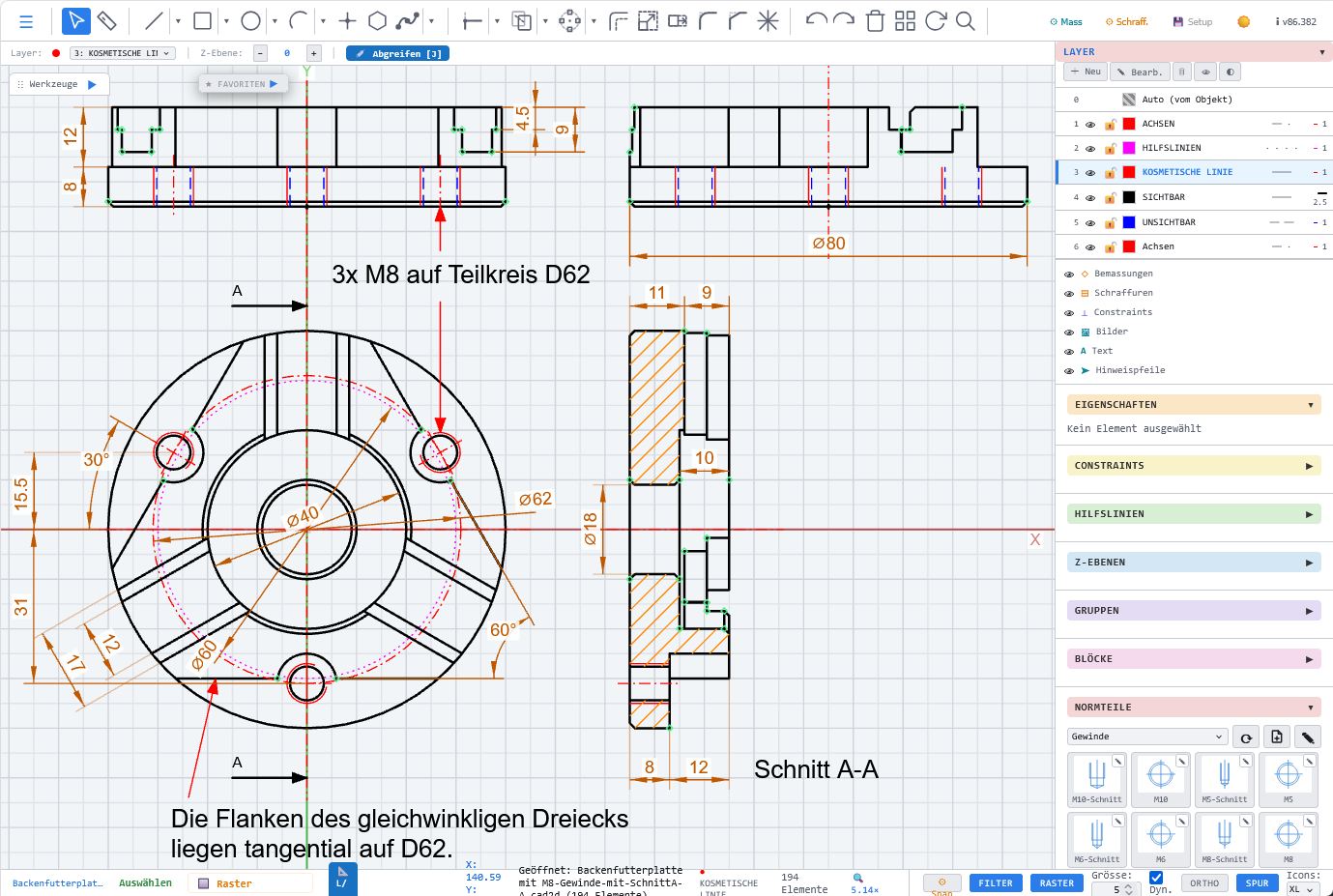
Practical chuck example with a clear technical 2D representation.
Construction example of a screw connection created directly in LiberoDraft.
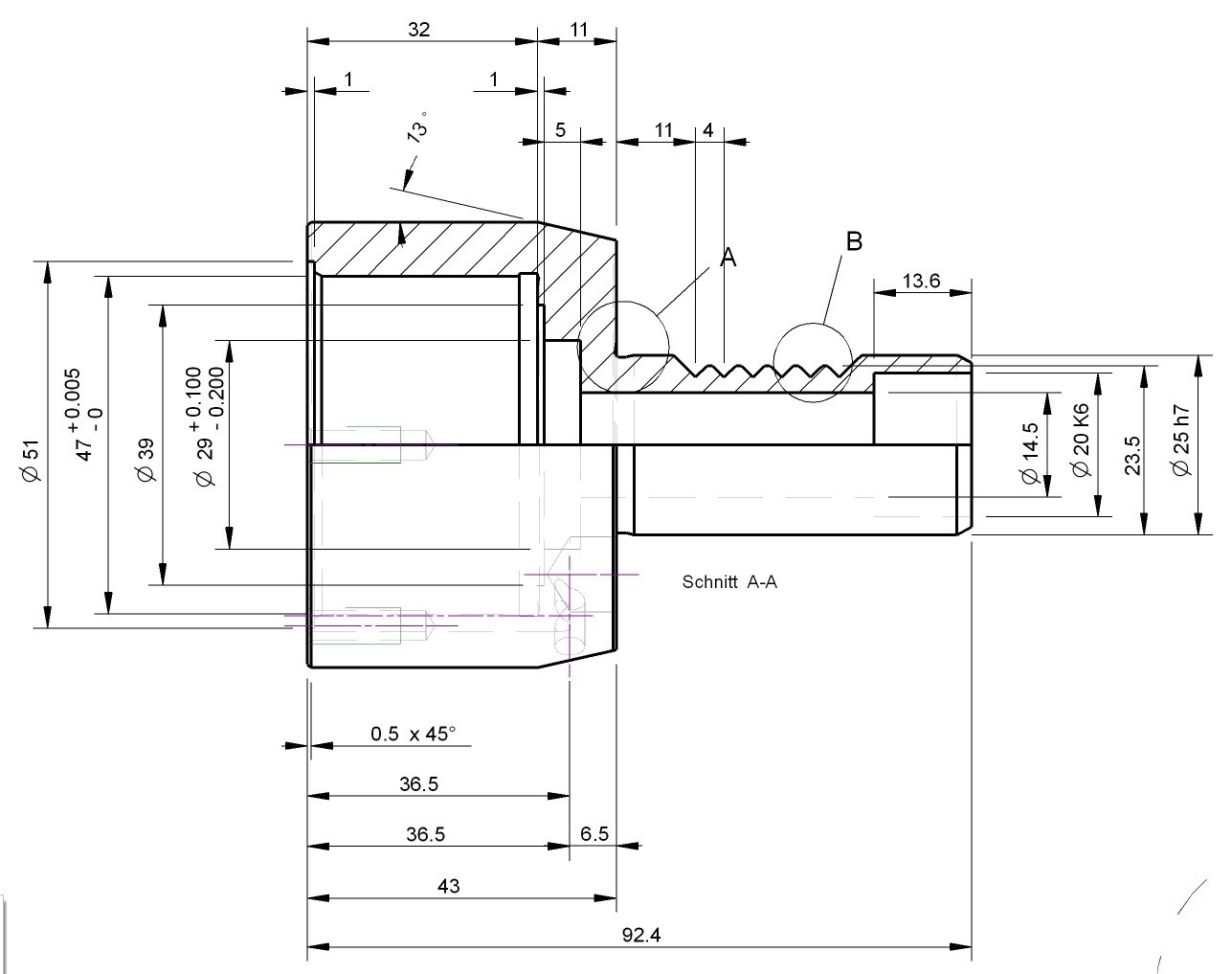
Technical drawing of a bushing with clean geometry and precise dimensioning.
Plant engineering example created directly in LiberoDraft in the browser.
Practice example directly from LiberoDraft, created in the browser and suitable for local storage.
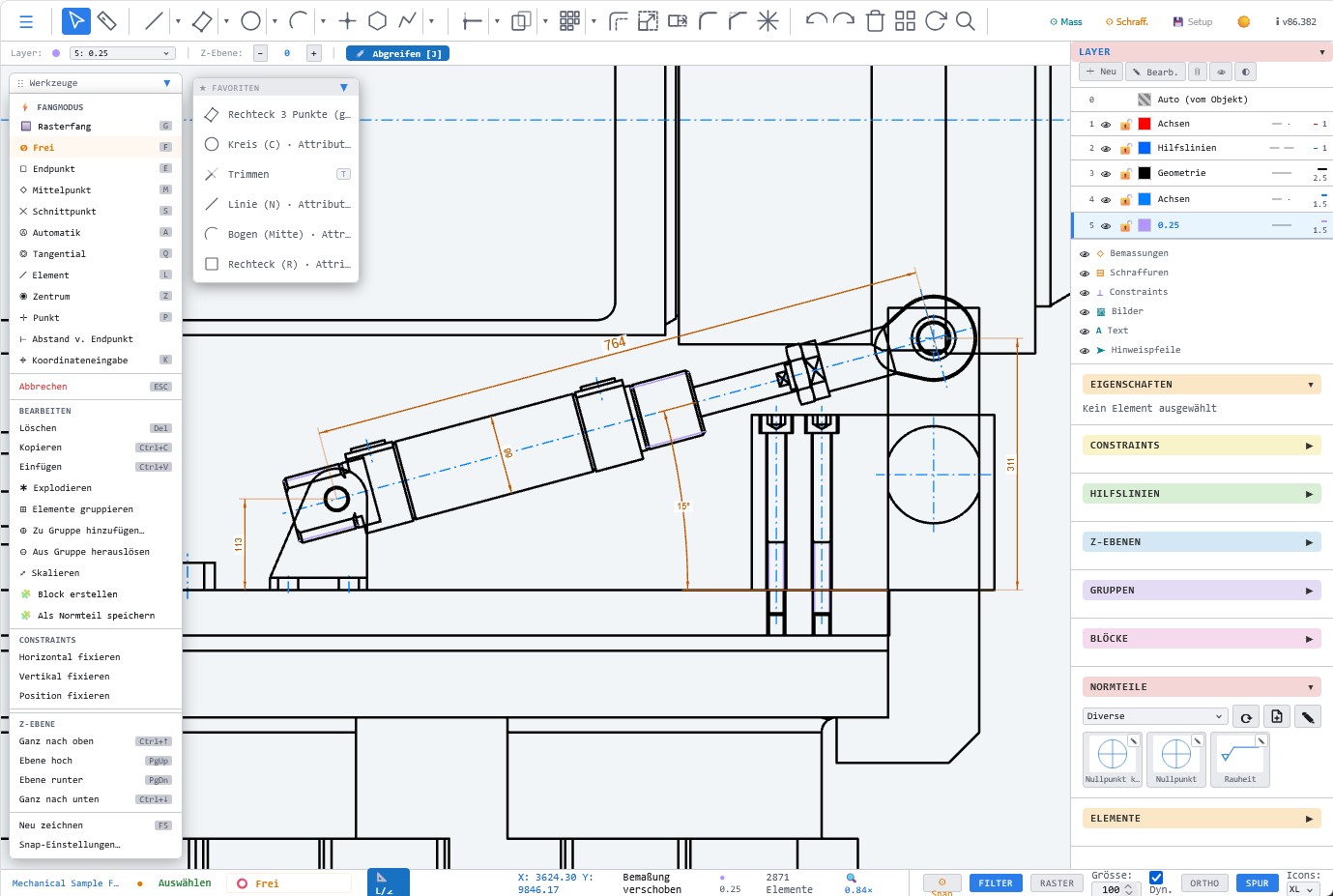
Mechanical engineering example from LiberoDraft with technical details, dimensioning and construction lines.
Plant engineering example created directly in LiberoDraft in the browser.
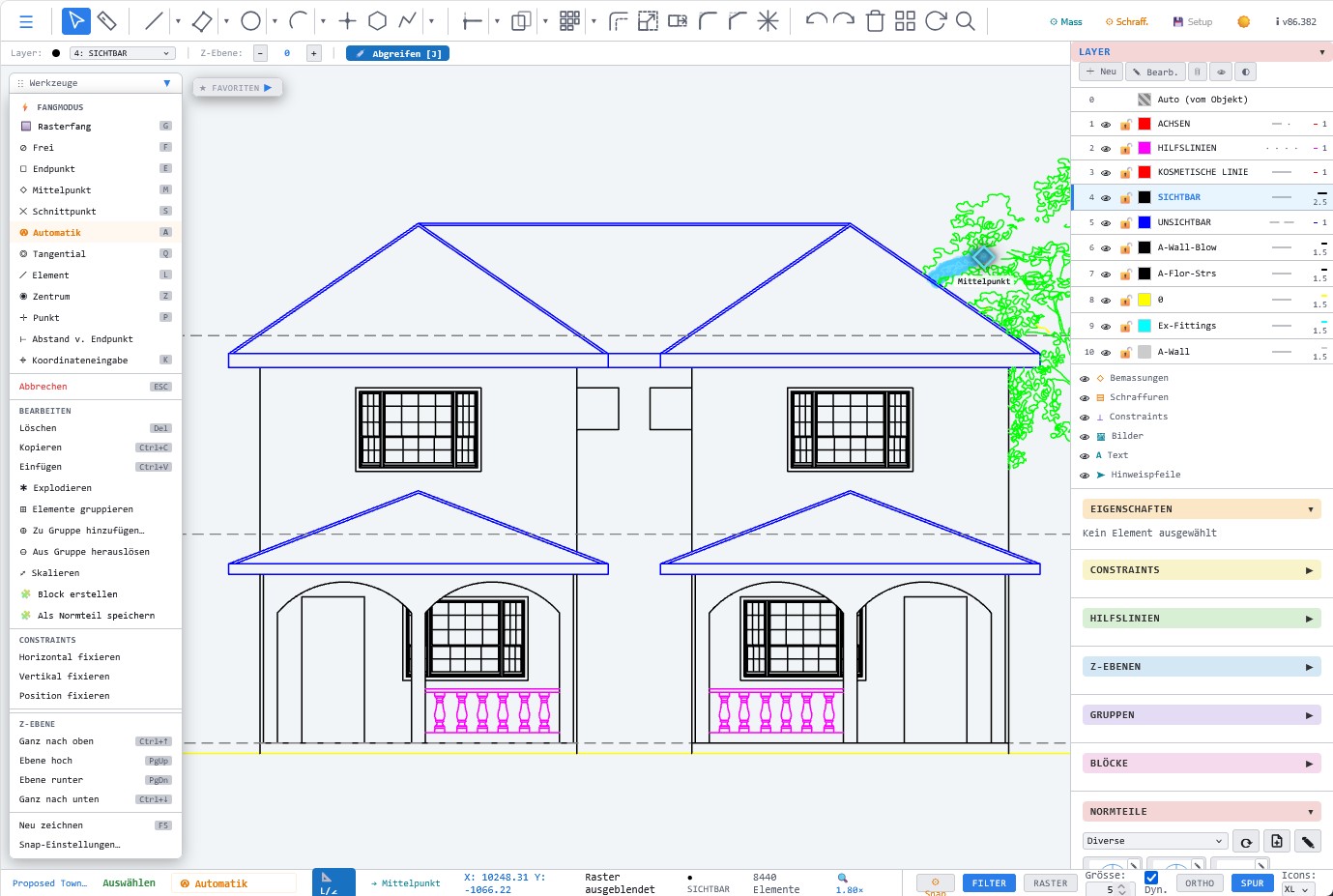
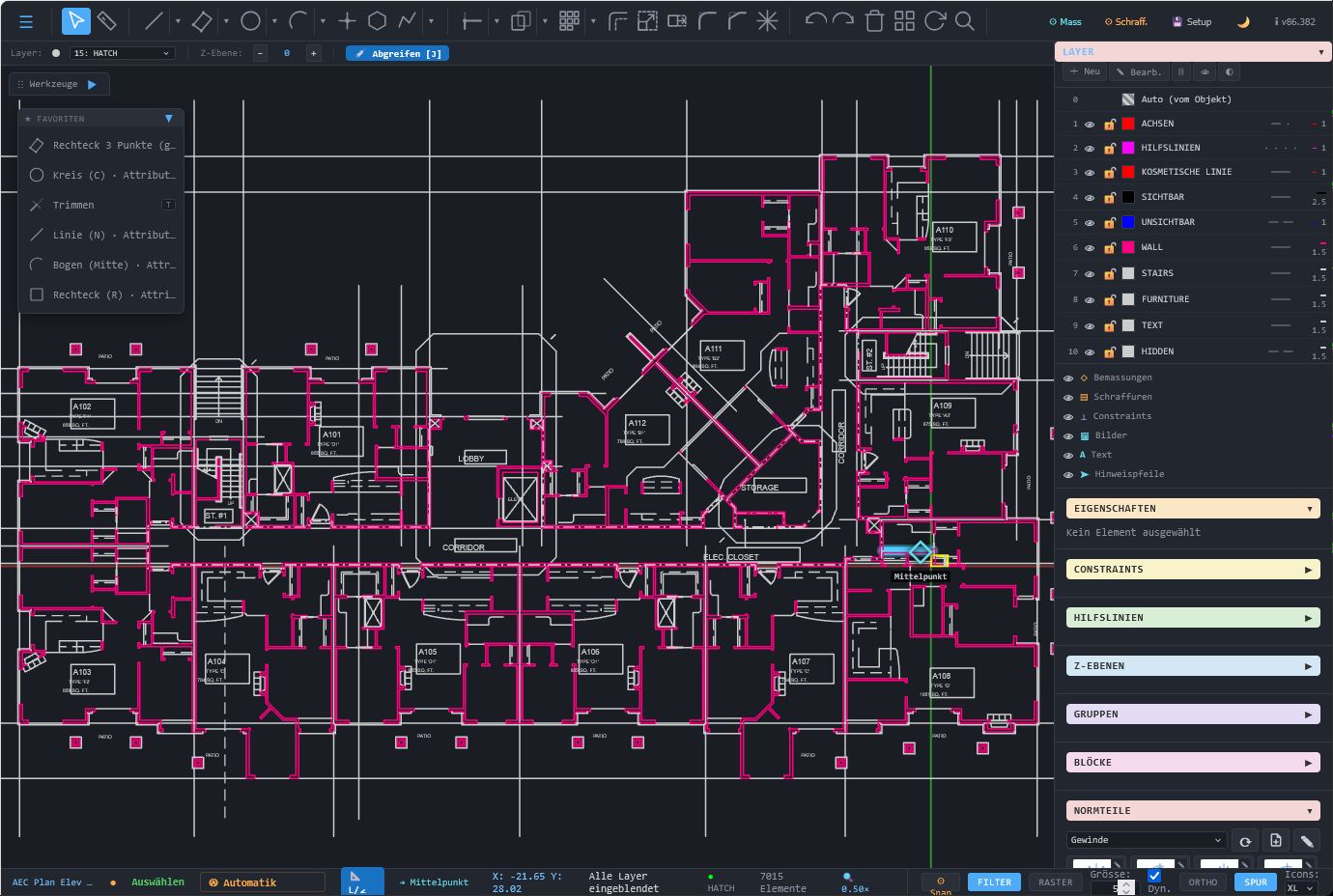
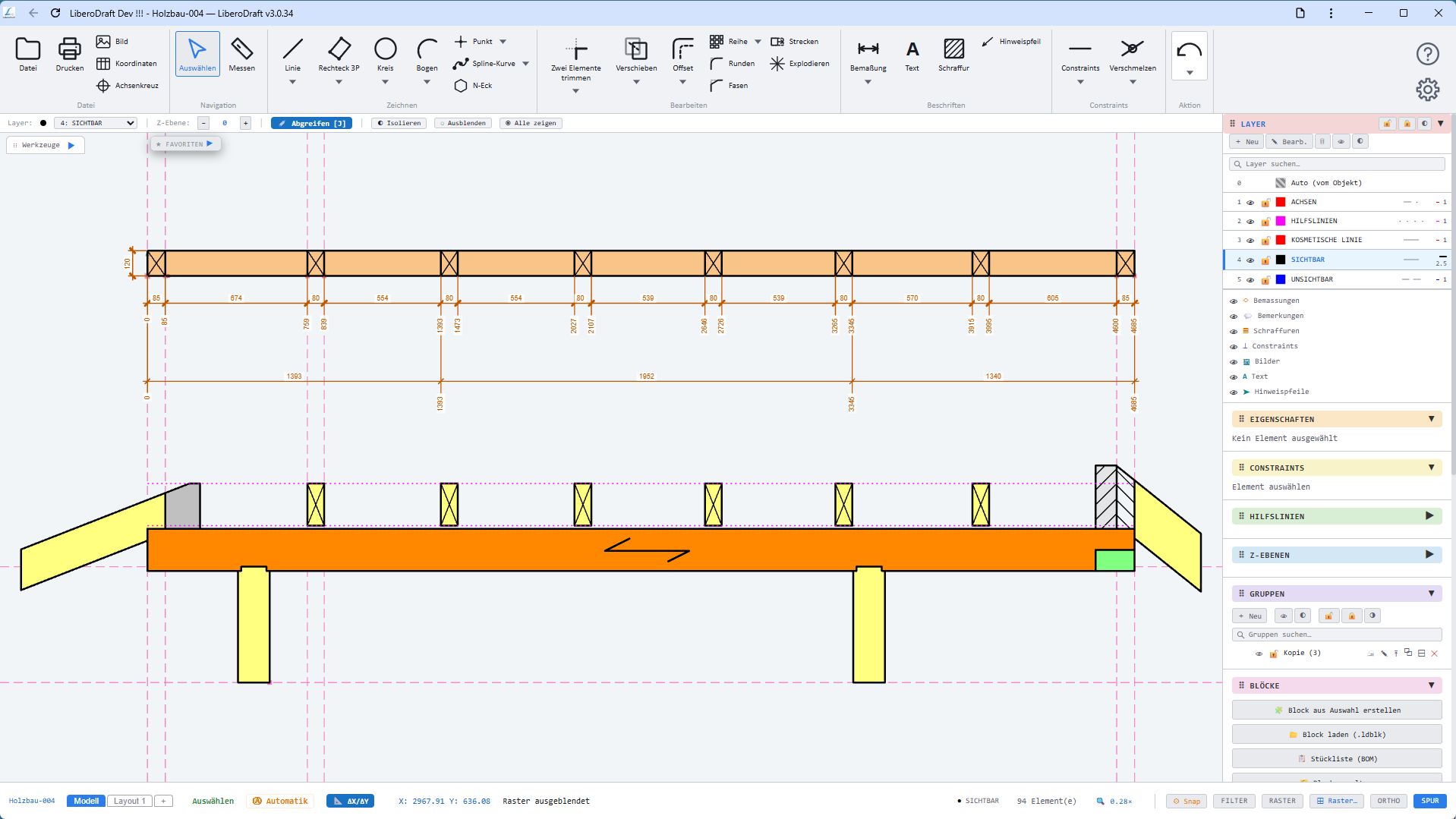
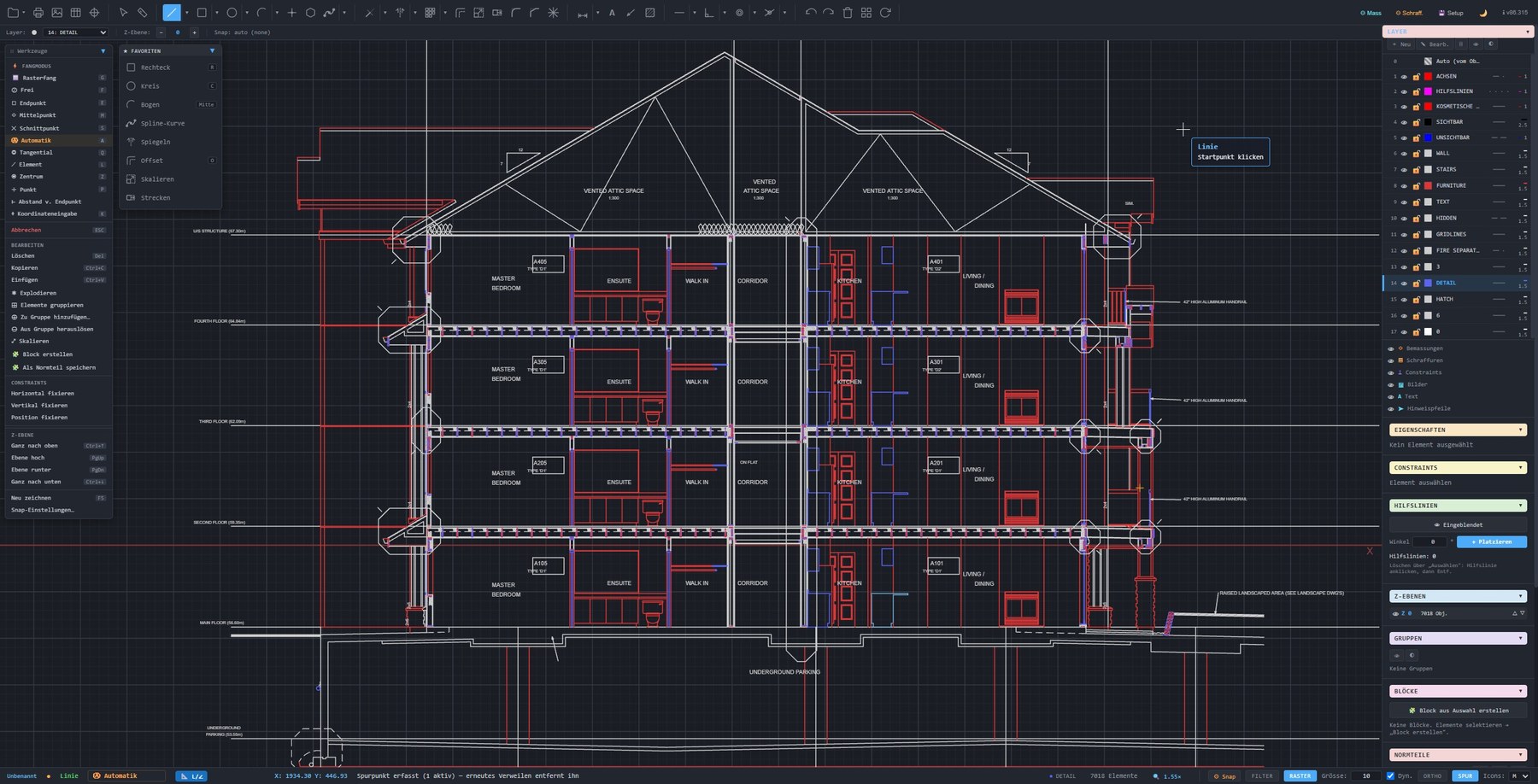
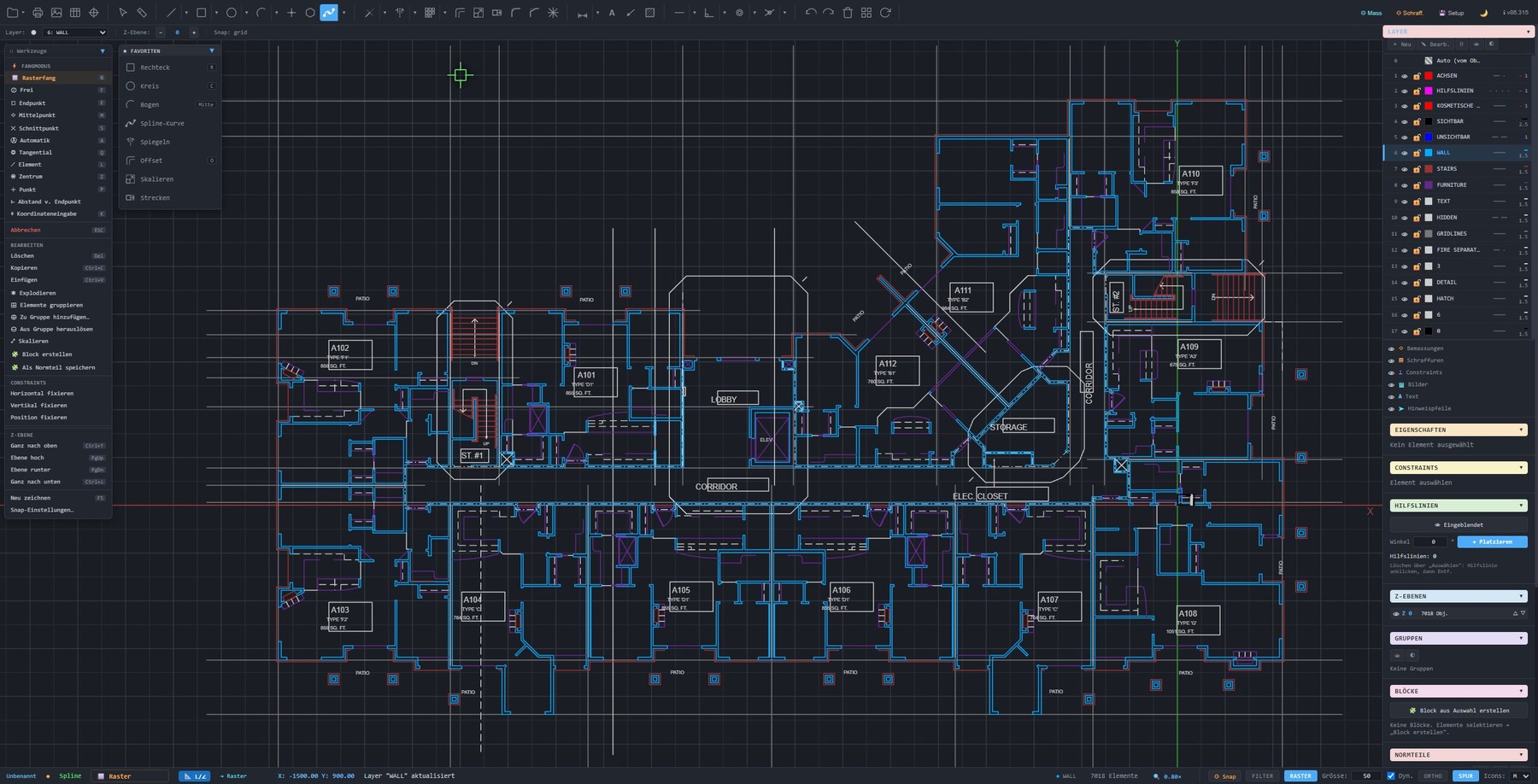
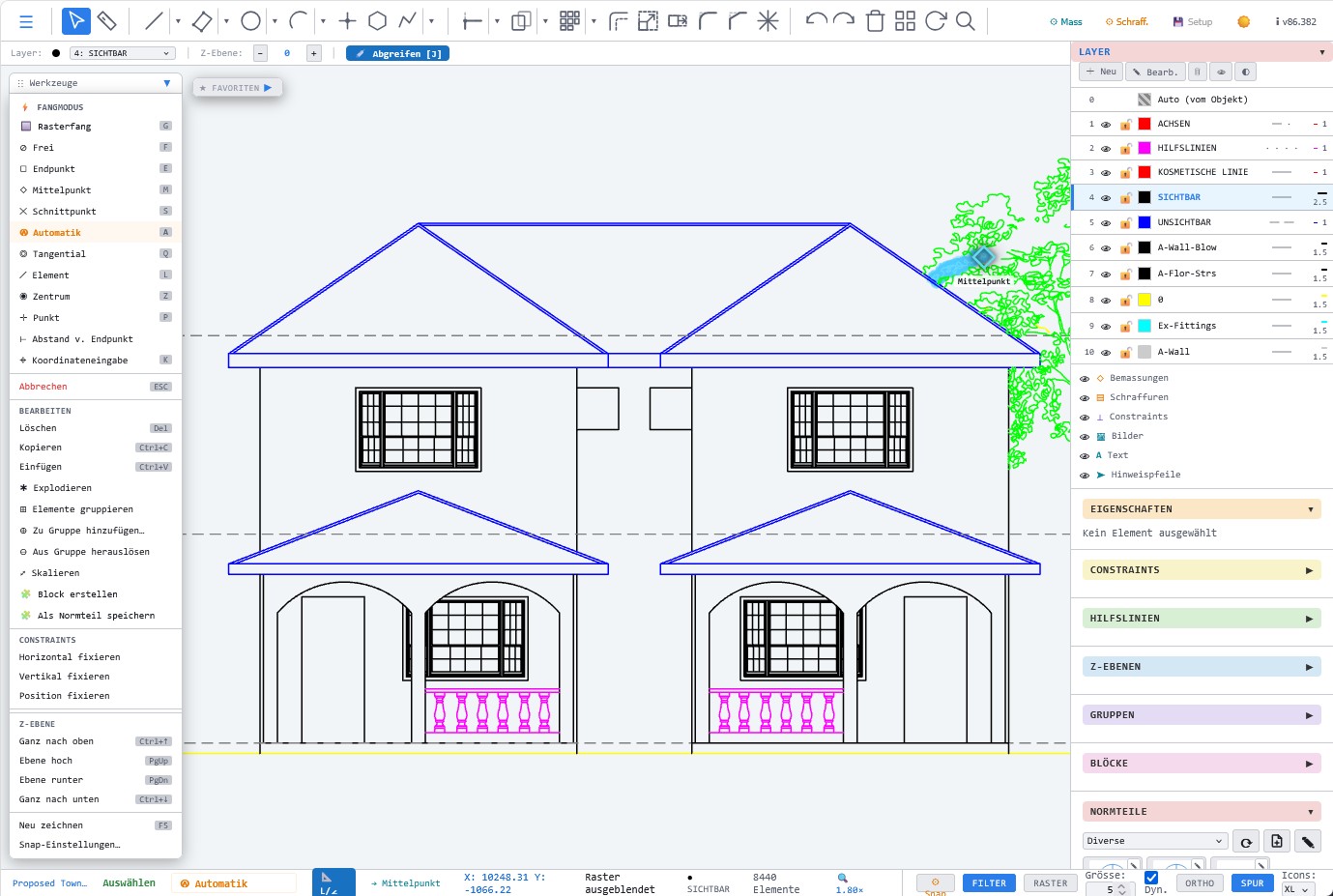
Architecture example from LiberoDraft with clear lines, construction elements and browser-based 2D planning.
LiberoDraft can be opened directly via the start link after registration. The program starts in a new browser window.
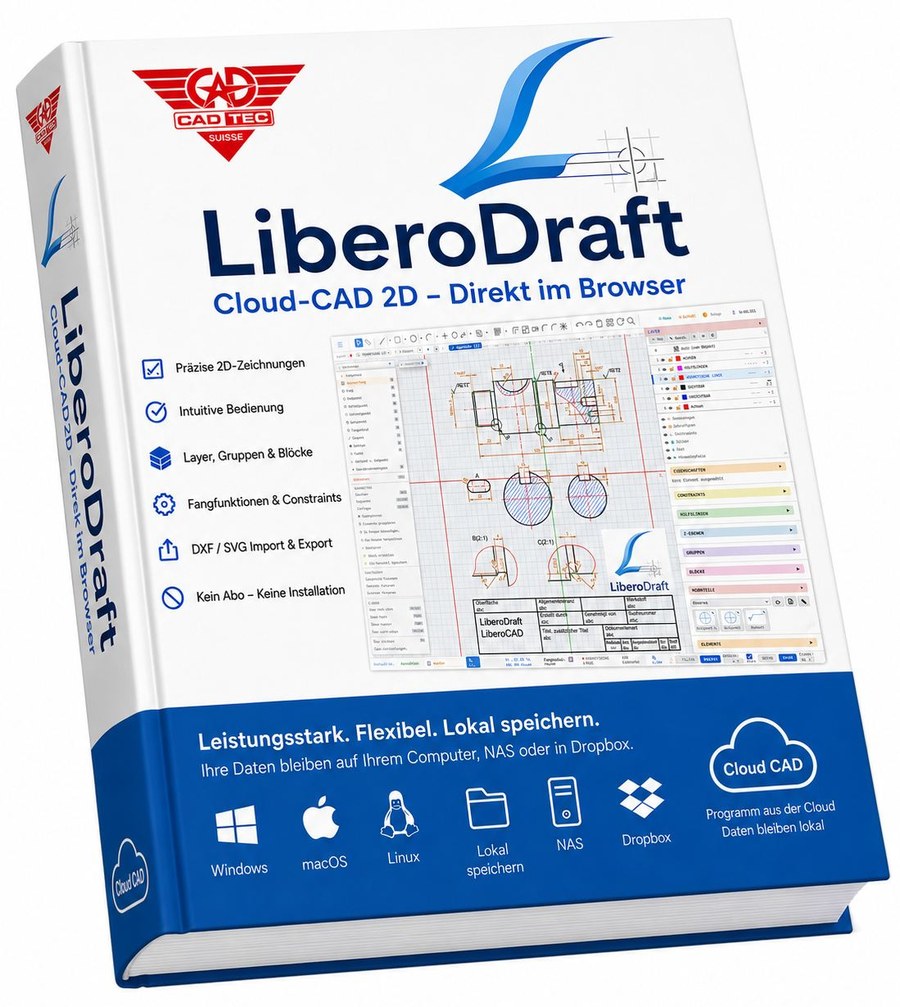
The detailed PDF book guides beginners and advanced users with images, step-by-step instructions, practice drawings and practical explanations.
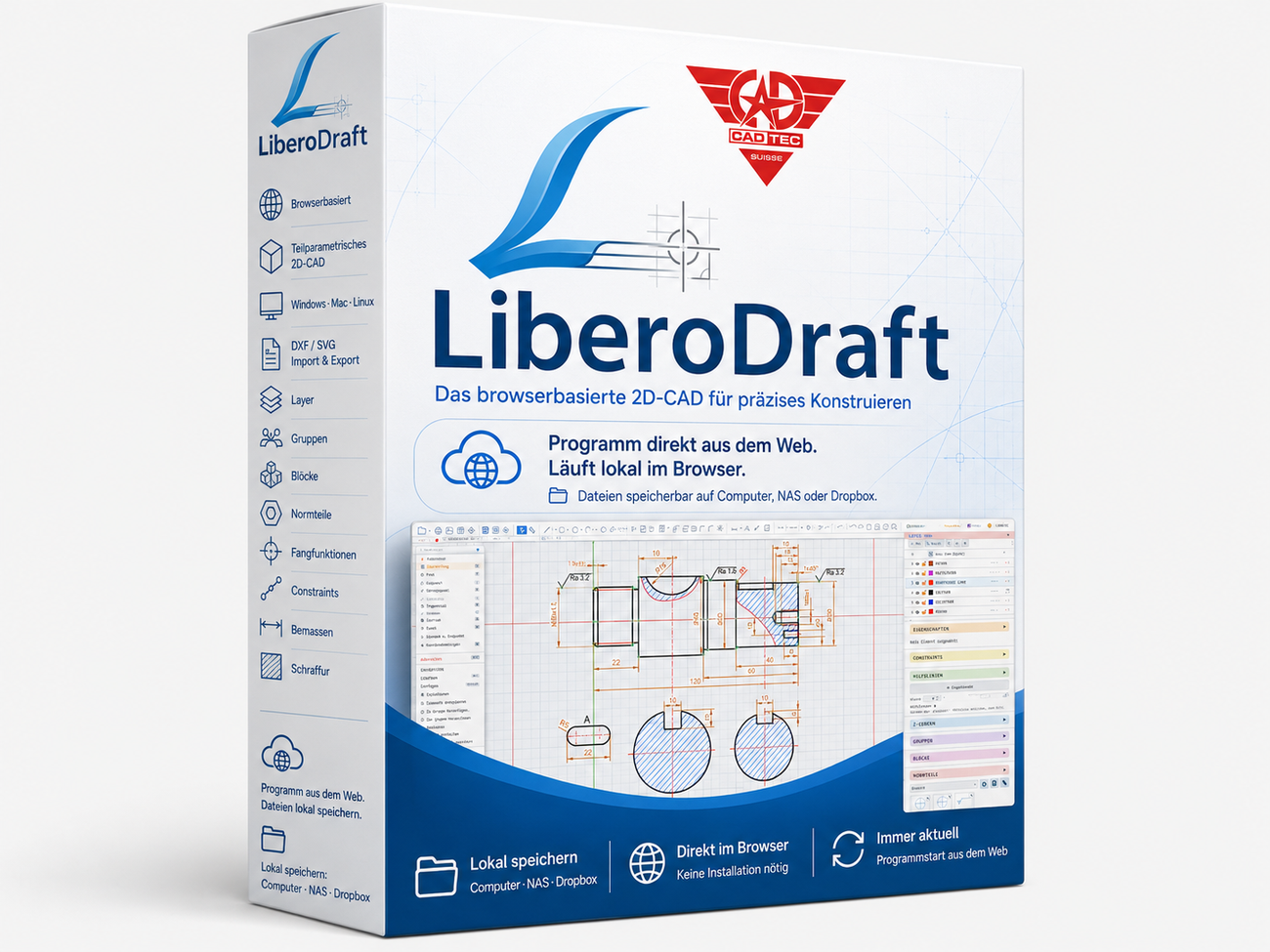
The box shot summarizes the key strengths: browser-based, locally storable, platform-independent and ideal for precise 2D design.
Start LiberoDraft nowThe most important chapters from the LiberoDraft book are available as fast online help with full-text search, table of contents and images.
Please register briefly to unlock the start link.
Your details are stored locally in this website’s SQLite database. After registration, you will also receive an e-mail with your personal start link.
LiberoDraft is intended to remain easily accessible. If you find the project useful, you can voluntarily support further development.
Support LiberoDraft conveniently via PayPal.
info@cadtec.ch
Support with PayPalSupport via classic bank transfer.
Support LiberoDraft via TWINT. Please enter “LiberoDraft” as the donation purpose.
For TWINT payments, please always enter the donation purpose “LiberoDraft”.
Support with TWINTDo you have an idea that would make LiberoDraft even better? Send us your suggestion.
Use this form for questions about the program, the online help or the CAD book.
No. LiberoDraft runs directly in the web browser and can be opened via the start link.
No. Your own files are saved locally on your computer. There is no forced cloud storage.
LiberoDraft runs in modern browsers and can therefore be used on Windows, macOS, Linux and many tablets.